Wednesday, 23 August 2017

Using Predictive Analytics and Python on SAP Cloud Platform HANA database - Part 1

I was recently working with a customer who was interested in doing Predictive Analytics on top of the HANA database which they recently subscribed to on SAP Cloud Platform. They already have an on-premise server for Predictive Suite and have been using their tools against an on-premise HANA database. I this blog, I wanted to share my experience to highlight how easy it is to do the same on a HANA database on the Cloud Platform.

SAP Cloud Platform, SAP HANA, SAP HANA Learning, SAP All Modules List, SAP Module, Python, SAP HANA Certificaions

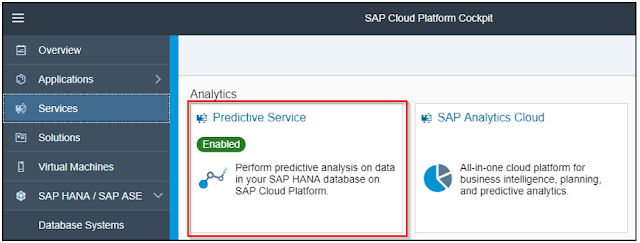
Once you have a HANA database subscribed on your Cloud Platform account, its important to note that you will need an additional subscription to Predictive services on the Cloud Platform too. The Predictive service on Cloud Platform offers REST based APIs which can be used in custom applications that you would build on the Cloud Platform.

SAP Cloud Platform, SAP HANA, SAP HANA Learning, SAP All Modules List, SAP Module, Python, SAP HANA Certificaions

In this scenario, we are not going to leverage the REST APIs as we are going to use the on-premise PA Suite to handle complex use cases.

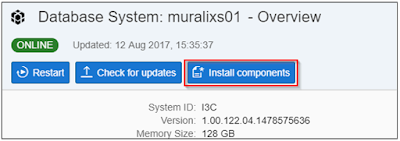
Once you have subscribed to Predictive Service, you can navigate to your database and click on “Install Components”

SAP Cloud Platform, SAP HANA, SAP HANA Learning, SAP All Modules List, SAP Module, Python, SAP HANA Certificaions

The system will give you a self-service option to install the APL Libraries you want. Note, it is recommended to have the version of APL match the version on your on-premise PA suite.

SAP Cloud Platform, SAP HANA, SAP HANA Learning, SAP All Modules List, SAP Module, Python, SAP HANA Certificaions

Once the APL libraries are installed on your HANA database, the next thing to do is to setup your Cloud Connector.

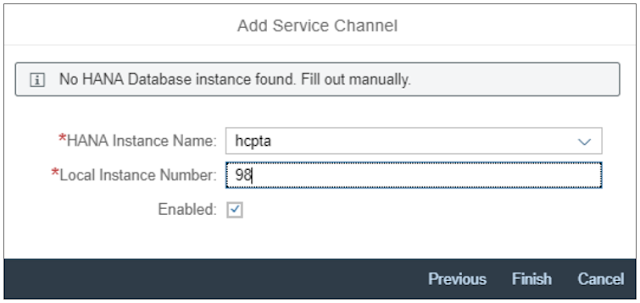
The next step would be select “On-premise to Cloud” option within the Cloud Connector to setup a service channel for your database connection.

In the example below, I have given the local instance number “98” for my HANA instance “hcpta”

SAP Cloud Platform, SAP HANA, SAP HANA Learning, SAP All Modules List, SAP Module, Python, SAP HANA Certificaions

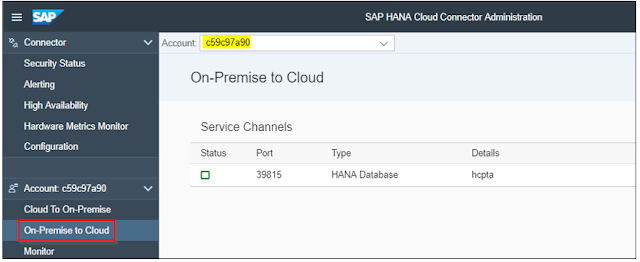
After you save the settings, you can now access the hcpta instance using the host name where the Cloud Connector is installed and Port = 39815. In my example, I have installed the Cloud Connector on my laptop and hence will refer to it as localhost.

SAP Cloud Platform, SAP HANA, SAP HANA Learning, SAP All Modules List, SAP Module, Python, SAP HANA Certificaions

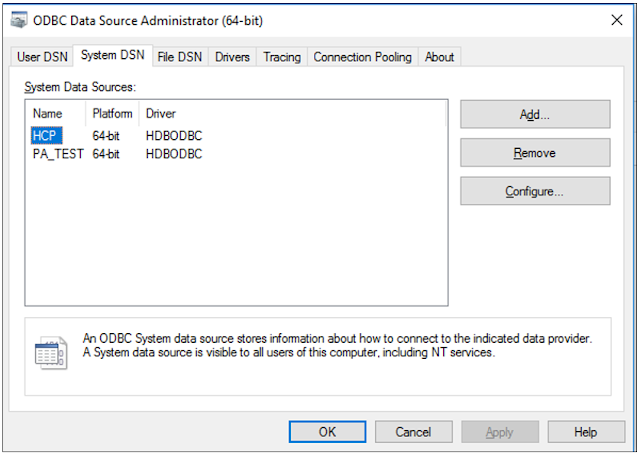
Search for ODBC Data Source in your programs and under “System DSN” maintain a new data source connection. In the below screen, I have maintained one with the name “HCP”

SAP Cloud Platform, SAP HANA, SAP HANA Learning, SAP All Modules List, SAP Module, Python, SAP HANA Certificaions

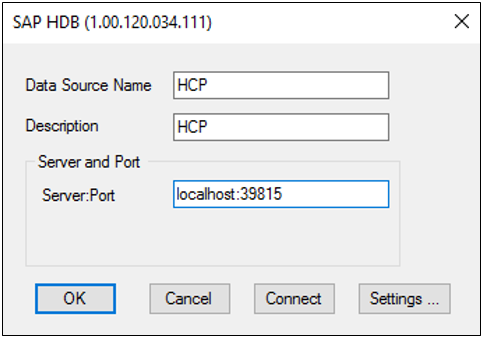
In the connection details, I have provided localhost:39815. When I try to test the connection, it will ask me for the HANA DB user credentials and it will give a successful message if everything works fine. I have got Cloud Connector, ODBC and PA software all on the same laptop.

SAP Cloud Platform, SAP HANA, SAP HANA Learning, SAP All Modules List, SAP Module, Python, SAP HANA Certificaions

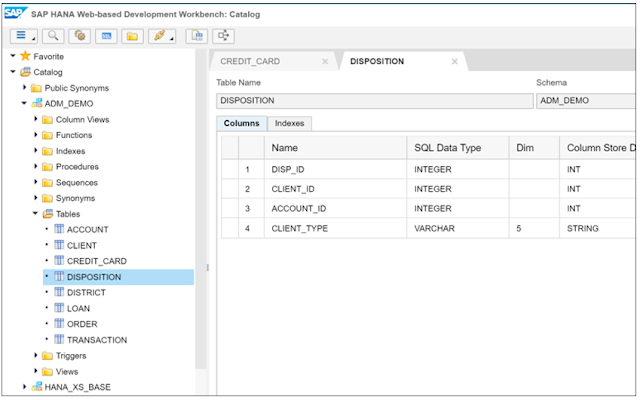
For demonstration purposes, I have created a schema ADM_DEMO which has demo data on banking customers and their transactions. The transaction table has got millions of records which we can use for predicting the customer churn.

SAP Cloud Platform, SAP HANA, SAP HANA Learning, SAP All Modules List, SAP Module, Python, SAP HANA Certificaions

I am going to show to get started with Predictive Analytics (on-premise) and connect to HANA DB on SAP Cloud Platform. I am not an expert on PA, but just showing a very basic scenario which created a table back in HANA. I would recommend using Predictive Analytics 3.2 version.

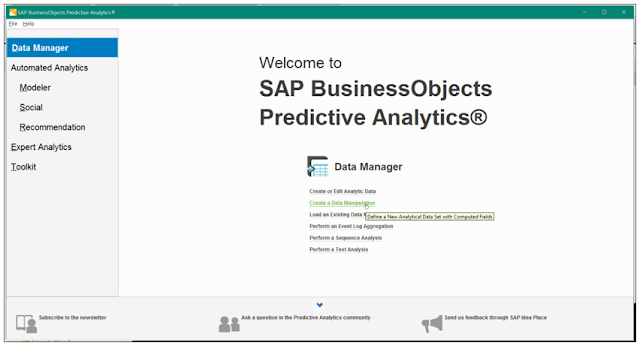
Launch the PA software on your laptop and click on “Create Data Manipulation” under Data Manger.

SAP Cloud Platform, SAP HANA, SAP HANA Learning, SAP All Modules List, SAP Module, Python, SAP HANA Certificaions

In the Data sources, select the one created in ODBC and provide the HANA DB login credentials.

SAP Cloud Platform, SAP HANA, SAP HANA Learning, SAP All Modules List, SAP Module, Python, SAP HANA Certificaions

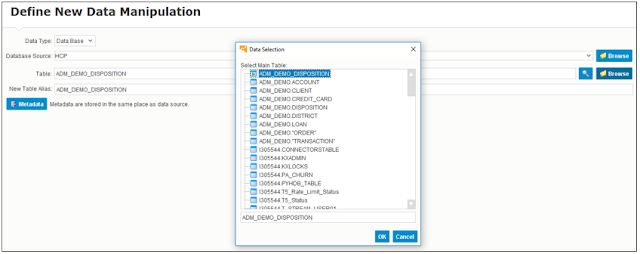
Select the Table by browsing through the available schemas.

SAP Cloud Platform, SAP HANA, SAP HANA Learning, SAP All Modules List, SAP Module, Python, SAP HANA Certificaions

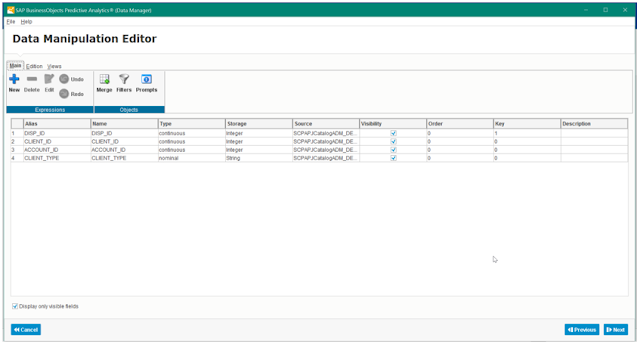
I have taken the Disposition table to begin with.

SAP Cloud Platform, SAP HANA, SAP HANA Learning, SAP All Modules List, SAP Module, Python, SAP HANA Certificaions

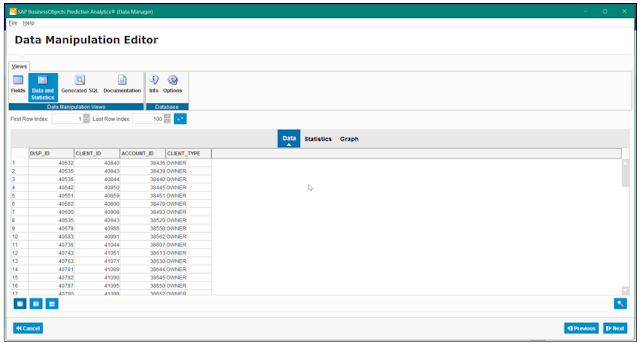
I can navigate to the Views tab and explore the data of this table.

SAP Cloud Platform, SAP HANA, SAP HANA Learning, SAP All Modules List, SAP Module, Python, SAP HANA Certificaions

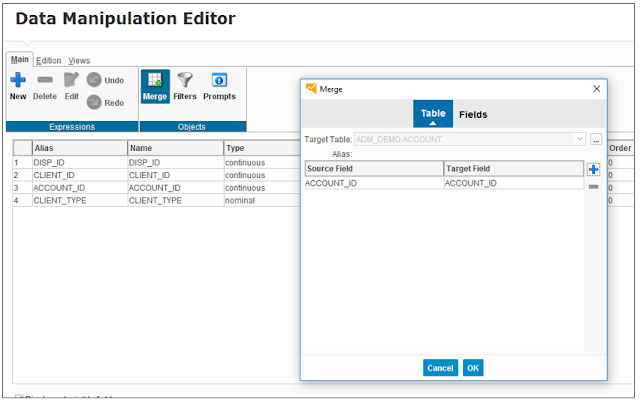
Next, I am using the Merge option to connect with the Accounts table

SAP Cloud Platform, SAP HANA, SAP HANA Learning, SAP All Modules List, SAP Module, Python, SAP HANA Certificaions

Account_ID is the key which links both the table. I repeat the same steps for adding Client table.

SAP Cloud Platform, SAP HANA, SAP HANA Learning, SAP All Modules List, SAP Module, Python, SAP HANA Certificaions

Once I have added all the tables and linked the keys, I can view the SQL which the system has generated.

SAP Cloud Platform, SAP HANA, SAP HANA Learning, SAP All Modules List, SAP Module, Python, SAP HANA Certificaions

I can also view the contents of this Dynamic SQL within PA.

SAP Cloud Platform, SAP HANA, SAP HANA Learning, SAP All Modules List, SAP Module, Python, SAP HANA Certificaions

I can apply filters, for example to only consider Client Type with a value “Owner”

SAP Cloud Platform, SAP HANA, SAP HANA Learning, SAP All Modules List, SAP Module, Python, SAP HANA Certificaions

Once I have put the relevant filters and set the aggregations which are required, I can now save the data back into HANA as a view. In the below example, I have given the name of a table PA_CHURN.

SAP Cloud Platform, SAP HANA, SAP HANA Learning, SAP All Modules List, SAP Module, Python, SAP HANA Certificaions

After execution of this step, I can now view the processed table available in HANA database

SAP Cloud Platform, SAP HANA, SAP HANA Learning, SAP All Modules List, SAP Module, Python, SAP HANA Certificaions

In the next blog, I will show you how to connect a python program to perform data science. This has been also coming up as a frequent question especially around customers who are implementing Predictive Analytics.

Tuesday, 22 August 2017

HANA Window Functions: Delivery Block Duration Example

Introduction


I have been working with databases for ages, and always thought they had little limitations, except for the possibilities to calculate across rows. In basic SQL it’s not possible to refer to values in other rows. This make some calculations very hard or even impossible.

SAP HANA Certifications, SAP HANA Live, SAP HANA Learning, SAP Guides, SAP Module, SAP Modules List, SAP Tutorial and Certifications

Working now a lot with the SAP HANA database, I learned about window functions which really opened a lot of new possibilities.

Window Functions


You can regard a window function as an in-line aggregation. You will get the results of the aggregation function on each line. Some simple examples based on the table below show the idea and the syntax of a window function:

SAP HANA Certifications, SAP HANA Live, SAP HANA Learning, SAP Guides, SAP Module, SAP Modules List, SAP Tutorial and Certifications

Let’s use a window function now to sum the total revenue of each customer. Here we use the well-known SUM() function and specify the aggregation level with the ‘over(partition by …)’ extension:

select "Customer", "Period", "Revenue",
sum("Revenue") over (partition by "Customer") as "TotalCustomerRevenue"
from "NSLTECH"."CustomerPeriodRevenue"

Which results in the following:

SAP HANA Certifications, SAP HANA Live, SAP HANA Learning, SAP Guides, SAP Module, SAP Modules List, SAP Tutorial and Certifications

This would be possible without window functions by running a subquery which does the aggregation on customer level and join it to the original table.

If we add an ‘order by’ clause, we will actually get a running sum over the periods

select "Customer", "Period", "Revenue",
sum("Revenue") over (partition by "Customer" order by "Period") as "TotalCustomerRevenue"
from "NSLTECH"."CustomerPeriodRevenue"

SAP HANA Certifications, SAP HANA Live, SAP HANA Learning, SAP Guides, SAP Module, SAP Modules List, SAP Tutorial and Certifications

Calculating Delivery Block Duration


A common question from business is to analyze the time a delivery block (or any other) has been active. This is a nice example which we can solve with the window functions LAG. The LAG function returns the value of a specific field of the previous row in the partition.

Let’s look at some example change documents regarding delivery blocks in the CDPOS/CDHDR table of SAP:

SAP HANA Certifications, SAP HANA Live, SAP HANA Learning, SAP Guides, SAP Module, SAP Modules List, SAP Tutorial and Certifications

Here you see that one document has been blocked and unblocked twice with the same code (07). The records where VALUE_OLD has a value and VALUE_NEW is empty are the moments the blocks are removed. If we take these records as the basis we would like to join the corresponding records at which the block was set.

However, this is not easily done with a subquery as you can’t just look at similar keys and block values because in this case the document has been blocked twice. You actually need to find the closest to the unset. This is where the window function LAG comes in.

First we add a couple of helper columns to the raw data:

◉ ChangeDate: to_seconddate(concat(UDATE, UTIME), ‘YYYYMMDDHH24MISS’)

◉ BlockCode: case VALUE_OLD when ” then p.VALUE_NEW else p.VALUE_OLD end

◉ BlockChange: case VALUE_OLD when ” then ‘Block’ else ‘Unblock’ end

Based on this input we calculate the previous ChangeDate for all records using the LAG function:

LAG(“ChangeDate”) over (partition by TABKEY, TABNAME, FNAME, “BlockCode” order by “ChangeDate”) As “PreviousDate”

The complete query:

select
  TABKEY, "BlockCode", "BlockChange", "ChangeDate",  VALUE_OLD, VALUE_NEW,
  LAG("ChangeDate") over (partition by TABKEY, TABNAME, FNAME, "BlockCode" order by "ChangeDate") As "PreviousDate"
from (
  select
     p.MANDANT, p.CHANGENR, p.TABKEY, p.TABNAME, p.FNAME, h.UDATE, h.UTIME,  p.VALUE_OLD, p.VALUE_NEW,
     case p.VALUE_OLD when '' then 'Block' else 'Unblock' end As "BlockChange",
     case  p.VALUE_OLD when '' then p.VALUE_NEW else p.VALUE_OLD end As "BlockCode",
     to_seconddate(concat(UDATE, UTIME), 'YYYYMMDDHH24MISS') As "ChangeDate"
  from SAP.CDPOS p
     inner join SAP.CDHDR h ON p.MANDANT = h.MANDANT and p.OBJECTCLAS = h.OBJECTCLAS and p.OBJECTID = h.OBJECTID and p.CHANGENR = h.CHANGENR
  where fname= 'LIFSK'
)

Which now results in

SAP HANA Certifications, SAP HANA Live, SAP HANA Learning, SAP Guides, SAP Module, SAP Modules List, SAP Tutorial and Certifications

If you select only the ‘Block’ records from this results and calculate the difference between the ChangeDate and the PreviousDate you will get the duration of the block.

Sunday, 20 August 2017

ABAP Call Monitor (SCMON) - Analyze usage of your code

The purpose of the ABAP Call Monitor (transaction SCMON) is to monitor the execution (usage) of ABAP code (function modules, method calls etc.) in your productive system. The advantage of the SCMON compared to the UPL (Usage Procedure Logging in SAP Solution Manager) is that using this tool you not only collect the usage data (how often a specific ABAP object was called), but also the information about the calling business process. Therefore as a result of the monitoring, you get a list of business transactions (callers) along with all ABAP objects that have been called within these business transactions including the number of calls.

SAP Live, SAP Tips, SAP Materials, SAP Guides, SAP Learning, SAP Certifications

Since SCMON comes along with enhanced functionality scope compared with UPL, you can consider SCMON as a successor and use it instead of UPL.

In the example below you can see, that the function module HTTP_GET_HOST was called altogether 50 times and 19 times of it within the transaction SICF, 17 times as remote function call from the FB_AUINT_CLASSTEST_EXTERNAL and so on.

SAP Live, SAP Tips, SAP Materials, SAP Guides, SAP Learning, SAP Certifications

ABAP Call Monitor does not provide any performance data.

You can use the collected data for example, to find all business processes that call  a specific ABAP object (e.g.to identify the business processes affected by code change or deprecation) or to find out which ABAP objects are called by a specific business process.

SAP’s recommendation is to keep the monitor switched on for a certain period of time to get reliable data.

Prerequisites


ABAP Call Monitor is available with AS ABAP 7.50 and for the lower releases (>=7.00) per ST-PI Add-on.

The authorization profile for object S_ADMI_FCD with value SCMD for read access to ABAP Call Monitor data.

The authorization profile for object S_ADMI_FCD with value SCMA for administration activities in the ABAP Call Monitor.

Integration into SAP Solution Manager 7.20


SCMON can be activated in different systems from one single place: SAP Solution Manager 7.20, if these systems are connected to SAP Solution Manager (Solman_Setup -> Custom Code Management).

SAP Live, SAP Tips, SAP Materials, SAP Guides, SAP Learning, SAP Certifications

Generally the Solution Manager 7.20 collects either UPL or SCMON data depending whether the connected system is capable of SCMON or UPL. It is also possible to extract the SCMON data into Solution Manager BW. The data will be stored in day slices and if needed as well in weekly, monthly and yearly aggregation. This will help to keep SCMON data during a long time period in one single place, but still keep the time slices and the respective data small in the original system itself. The existing already collected UPL data get also imported into Solution Manager BW and simply mixed with the new SCMON data.

The SCMON data can then be evaluated for decommissioning of unused objects in the connected systems, using Custom Code Lifecycle Management (CCLM) Decommissioning Cockpit in the Solution Manager. (Sm_Workcenter -> Custom Code Management -> Custom Code Management or CCLM Decomissioning Cockpit). Please consider that usage data are collected from different systems and if an object is not used on one system, but used on the other system, you should not decommission it.

Administrator: Configuring ABAP Call Monitor


System administrator configures SCMON and changes the data collection.

CAUTION:

◈ You should never run Usage Procedure Logging (UPL) und SCMON in parallel. This can happen coincidentally for example if you activate UPL via Solution Manager and then SCMON locally in ABAP system.
◈ Avoid using SCMON (or UPL) for the systems which already run under maximum load

It is the task of a system administrator to activate or deactivate monitoring with SCMON for the entire ABAP system (all server instances) by using the button Activate and then specifying the configuration settings:

SAP Live, SAP Tips, SAP Materials, SAP Guides, SAP Learning, SAP Certifications

Here you specify the point of time when the monitoring will be deactivated automatically (Scheduled Deactivation) and limit the maximum number of records that are created during monitoring (Record Limit).

The time slices in the ABAP Call Monitor make possible to analyze the progress of monitoring results over time. You then have the option to focus on monitoring data for a specific time interval. For example, you might be interested in those ABAP procedures that call development objects that have been declared as deprecated since a specific point of time (ABAP Call Monitor > Configure Time Slices).

SAP Live, SAP Tips, SAP Materials, SAP Guides, SAP Learning, SAP Certifications

Here you can limit the data records created during monitoring to a specific period of time. The ABAP Call Monitor automatically deletes the monitoring data that has been created before Maximum Number of days.

Usually, the data collection takes automatically place once an hour if the ABAP Call Monitor is active in the system. But you can trigger the data collection explicitly at any point of time (button Collect Data).

If you have finished your monitoring activities and no longer need the corresponding data, you have the option to explicitly delete the collected monitor data (menu ABAP Call Monitor > Delete Data).

Developer: Using ABAP Call Monitor for data analysis


Display and analyze the collected data


The Data Browser of the ABAP Call Monitor allows you to analyze the use/dependency relationship between called objects and calling business processes (button Display Data).

You can also specify the data for selective analysis. For example if you want to get all URLs calling the method TRACE of the class CL_HTTP_SERVER during a specific period of time, you need to specify the following options:

SAP Live, SAP Tips, SAP Materials, SAP Guides, SAP Learning, SAP Certifications

And here is the result example:

SAP Live, SAP Tips, SAP Materials, SAP Guides, SAP Learning, SAP Certifications

If you want to display all ABAP objects that were used (called) by the SE38 transaction within one day you need to specify the following options:

SAP Live, SAP Tips, SAP Materials, SAP Guides, SAP Learning, SAP Certifications

Based on the selection criteria, the ABAP Call Monitor generates a result list of request entry points along with all ABAP objects that have been executed within the selected time interval:

SAP Live, SAP Tips, SAP Materials, SAP Guides, SAP Learning, SAP Certifications

Each entry in the list represents a monitoring data record, which you can drill down for viewing further details. For example Show Time Evolution displays the daily time slices of monitoring data for the selected entry, Show Calling Requests displays the calling requests and Show Called Requests displays the called requests for the selected entry.

SAP Live, SAP Tips, SAP Materials, SAP Guides, SAP Learning, SAP Certifications

Display and analyze the Call Graph


The call graph option allows you to focus on the usage/dependency relationship between requests (button Display Call Graph). For example, if you want to know which objects call the transaction SE38 within a certain period of time, you will need to specify the following options:

SAP Live, SAP Tips, SAP Materials, SAP Guides, SAP Learning, SAP Certifications

And here is the result example:

SAP Live, SAP Tips, SAP Materials, SAP Guides, SAP Learning, SAP Certifications

Display Log


Occasionally, you will need an overview of all monitor activities within a certain period of time (button Display Log).

In the Log Browser screen that appears, you get a list of actions or events – such as activation or deactivation of the call monitor, deletion of records, and collection of data.

SAP Live, SAP Tips, SAP Materials, SAP Guides, SAP Learning, SAP Certifications

Tuesday, 15 August 2017

5 Steps To Achieve a Successful Migration to SAP HANA

SAP HANA is the most important technology innovation from SAP in the last decade and almost all SAP products released after SAP HANA have an extensive ability to integrate into this platform.

SAP HANA, SAP Module, SAP All Modules, SAP Guides, SAP Tutorial and Material, SAP Certification, SAP Learning

SAP HANA is not just a traditional database; it is an in-memory data platform deployable on premise or in the cloud, and empowers you to accelerate business processes, deliver more business intelligence with advanced innovations and capabilities to run your business faster and simplify your IT environment.
SAP HANA, SAP Module, SAP All Modules, SAP Guides, SAP Tutorial and Material, SAP Certification, SAP Learning
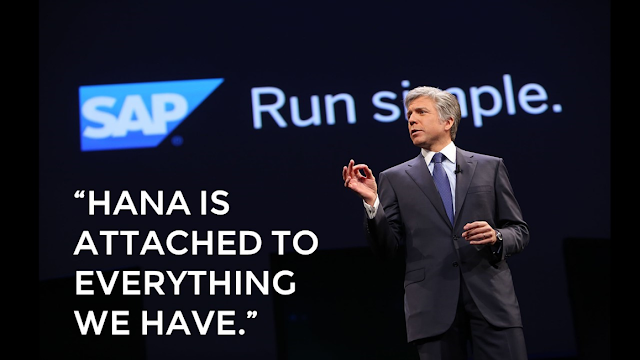
“HANA is attached to everything we have.” Bill McDermott, CEO, SAP.
When implemented properly, SAP HANA delivers outstanding results in terms of performance, integration capabilities, analytic intelligence, data processing and improves ROI of your SAP landscape with faster time to value. This article is designed to help you plan and execute a successful technical migration to SAP HANA platform and aimed to provide a high-level overview of the most important, yet often overlooked steps, with a focus to reduce the risk of your organization’s journey to SAP HANA.

STEP 1: CORRECTLY SIZE YOUR HANA LANDSCAPE


Sizing your SAP HANA landscape is a vital and fundamental step when creating your technical project plan and helps you realize the maximum benefit from your investment while reducing long-term total cost of ownership. Inadequate and over-provisioned sizing could lead excess capacity and bloated hardware while under-provisioning can cause unexpected delays that will increase the cost of operational performance.

For the most part, sizing of SAP HANA database is based on the main memory which is determined by the amount of the actual data stored in memory. Since the data is compressed in HANA and the compression results depends on the used scenario, it is not easy to guess the amount of memory needed for sure. Therefore, the memory sizing for SAP HANA should be performed using SAP Quick Sizer tool, relevant SAP notes and SAP sizing reports.

Correct sizing of SAP HANA consists of three main steps:

◉ Memory sizing for static and dynamic data
◉ Disk sizing for persistence storage
◉ CPU sizing for transactions, queries and calculations

STEP 2: CHOOSE THE RIGHT PLATFORM AND MIGRATION STRATEGY


You can migrate to SAP HANA quickly and seamlessly by choosing the right platform that best fits your business needs, budget, and resources. SAP HANA can be deployed on premise for maximum control and reduced risk, or in the cloud for increased flexibility, scalability and faster time to value.

With on premise deployment; you can choose a certified SAP HANA appliance from one of SAP’s hardware partners. The preconfigured appliance with preinstalled software (by the hardware vendor) will help you harness the real-time power of SAP HANA in-memory platform – behind your own firewall. With the preconfigured approach, you will get the solution validated by both SAP and hardware vendor. On the other hand, SAP HANA Tailored Data Center Integration (TDI) provides you more flexibility. You can significantly reduce infrastructure costs and simplify your SAP HANA integration by leveraging existing hardware and operations in your own data center.

There are variety of cloud deployment scenarios. SAP also has its own private cloud offering called SAP HANA Enterprise Cloud. It includes an SAP HANA software license, underlying cloud infrastructure, and SAP-managed services. Public cloud, IaaS offerings allow you to bring your own SAP HANA license to run on third-party public cloud providers: Amazon Web Services, Google Cloud Platform, IBM Bluemix Cloud Platform and Microsoft Azure.

SAP HANA, SAP Module, SAP All Modules, SAP Guides, SAP Tutorial and Material, SAP Certification, SAP Learning

After you decide your HANA deployment scenario, you need to select the most effective migration strategy to reduce any unforeseen problems and eliminate longer system downtime during the technical migration so you can realize faster time to value.

Classical migration is the first and mostly used (so far!) approach for OS/DB migration which is basically a heterogeneous system copy using classical migration tools such as SWPM, R3load and Migration Monitor. If your system does not require any version update to run on SAP HANA, and you only need to perform the actual migration; for instance, you are migrating your Business Suite or BW system to SAP HANA as it is without any additional component requirement; classical migration approach would probably be the best way.

Another option is Database Migration Option (DMO) of SUM which combines system update, technical migration and unicode conversion (if required) with an optimized migration procedure from ABAP-based SAP system running on anyDB to SAP HANA. DMO of SUM offers simplified migration steps (hence less error-proneness), reduced manual effort compared to classical migration, and only one business downtime period which can also be optimized depending on the scenario. Source database is consistent with this approach, continues to run and it is not modified therefore it can be reactivated with only medium effort in case of a fall-back. So, even though it’s a new method, it is a completely safe option.

If you have lots of technical issues with your existing system and would like to proceed with greenfield approach with selective data migration for SAP HANA; then it might be better to perform a fresh installation on SAP HANA. This option can also be an efficient approach for companies that has mostly standard SAP processes and planning to move S/4HANA Cloud with relatively smaller data foot print.

STEP 3: CLEANSE YOUR DATA


SAP HANA offers a lot of advanced analytics and opportunity to optimize your business operations by analysing large amounts of data, in real time. It runs faster than all traditional databases we know so far, but you know what is better?

Run it even faster with reduced cost!

Data cleansing is one of the critical activities you must perform before bringing your SAP systems into HANA and unfortunately it is also the most overlooked step. There are three most important benefits from cleansing your data:

◉ Reduced data foot print will also reduce your infrastructure, hardware and SAP HANA licensing costs
◉ Reduced data size allows you to perform the technical migration with reduced business downtime
◉ By keeping only quality and necessary data in your system, SAP HANA performs even better after the technical migration

SAP HANA, SAP Module, SAP All Modules, SAP Guides, SAP Tutorial and Material, SAP Certification, SAP Learning

The figure above provides guidance for a proper data cleansing process. Keep in mind that the activities listed here may change, depending on your business needs and internal processes. You must ensure you are applying the most suitable data cleansing method for your own business. It is generally OK to remove technical data, application logs and system logs. You can always archive your aged business data to reduce the size of your database.

STEP 4: APPLY HIGH IMPLEMENTATION STANDARDS


It is generally a bad idea to cut corners during a technical migration project, and you need to allocate the time to get it right. Do not to take shortcuts during this phase of the project and focus on keeping high standards in your activities. You need to be methodical and understand all required activities from planning to cutover.

Your technical team should have plenty of experience and understanding of technical migration guidelines, relevant SAP notes and best practices. If things go wrong while performing the technical migration, you will be better prepared and less likely to miss the solution.

Make sure your source systems are ready for their journey to SAP HANA. Even though your source system version is supported for the migration, it is better to be on the latest release. SAP delivers latest fixes and solutions to common problems with every release and support package. Make sure your system has these in place before starting a migration project.

SAP HANA, SAP Module, SAP All Modules, SAP Guides, SAP Tutorial and Material, SAP Certification, SAP Learning

Don’t take unnecessary risks especially when migrating your database. You will never have too many backups; therefore, make sure you have full backups and archive logs to allow regular restore points. Eliminate common risks to ensure a smooth technical migration.

As J.R.R. Tolkien said: “Short cuts make long delays.”

If you want your project to be a success, then do not take shortcuts and always keep high standards.

STEP 5: DO A PROOF OF CONCEPT


You need to perform a “Proof of Concept” in a sandpit environment first, so you can “validate” your migration process to an SAP HANA platform. You can do this by copying your SAP Production system to create an SAP Sandpit environment and perform the actual migration on this system first.

This is a crucial step for any technical migration process and I can assure you that the cost of duplicating the environment is well worth it, because;

◉ It gives you an idea of how long it takes
◉ You can identify possible issues in the sandpit system and reduce the project risk
◉ It facilitates business to realize the power of SAP HANA
◉ It helps you make important decisions in your project plan and improve overall project productivity
◉ You will have more testing and validation time in a non-critical environment
◉ It provides a sense of momentum throughout project

SAP HANA, SAP Module, SAP All Modules, SAP Guides, SAP Tutorial and Material, SAP Certification, SAP Learning

As Aristotle once said: “For the things we have to learn before we can do them, we learn by doing them.”

WHAT NEXT?


If you have gotten this far, you are now ready to start planning your technical migration to the SAP HANA platform.

Implement these 5 steps; you will not experience any unexpected issues and your technical migration process should go smoothly.

I wish you a successful transition into the new SAP HANA platform.

Thursday, 10 August 2017

SAP - Production Planning (PP) Master Data

The first time I learned about SAP, I was having difficulties to understand the basic concept because of its ‘technical’ language. So, I hope this post can help those who are just started to jump in the Production and Planning world of SAP.

SAP Production Planning (PP), SAP Module, SAP All Modules, SAP Certifications, SAP Tutorials and Materials

PP Master Data


In general, master data in Production Planning consists of:

  • Material Master
  • Bill of Material (BOM)
  • Work Center
  • Routing
  • Production Version

Material Master


Material Master contains information on the material that is manufactured/produced, procured, or sold by the company. For example, in a bakery, the material master would be the types of bread and cake that is sold, as well as all of the ingredients needed to make those breads and cakes; In a car manufacturer company, for instance, material master would be the car itself, the door hinge, the steering wheel, and the seat. We define a thing as material master if we want to make it as our inventory and/or monitor the stock.

Bill of Material (BOM)


BOM is the complete components that make up a product. In other words, BOM is the ingredients needed to make a certain bread or the parts needed to create a car. For instance, in order to make a tuna sandwich, we need two slices of bread, 10 gr of tuna, 0.5 gr of butter, and 1 gr of mayo. Those ingredients are the BOM for a tuna sandwich.

Work Center


Work center is a unit where the activities (operations) carried out. It can be a machine/group of machine, a person/group of people, production  line. In a bakery, the work center could be the oven(s), the microwave(s), the stove(s), or the chef(s). In a car manufacturing company, the work center could be the assembly robot. The capacity, scheduling, and costing of machines or people are recorded in work center. For example, how long an oven can operate in a day, how many ovens can be used, and what cost should be calculated from this oven, all can be recorded in work center master data.

Routing


Routing contains the sequence of operations to be performed, as well as the work center to perform the operation. To put it simply, in routing, we explain the steps of how to make something. For example:

To make a tuna sandwich, what we should do is:
  1. Spread butter on the bread
  2. Put tuna on top of it
  3. Add another slice of bread to cover the tuna
  4. Put it in the oven for 5 minutes

Production Version


Production version is the combination between BOM and routing. It determines various production techniques to be performed in the production (what BOM and which routing). It is the complete recipe of how to make something. It contains the ingredients, the tools needed, and the steps of doing it.

All of the master data above are needed to execute production process as well as calculate the cost for this production process.

Wednesday, 9 August 2017

How to create ABAP CDS View with enabling derivation of the value for parameters

There have been dozens of blogs online for walking through developers on how to create ABAP CDS view with parameters in ABAP for HANA, however, one major issue still exists is that although input parameters can restrict or filter the data from CDS views, the limitation of the value input for a parameter to filter out more specific data range is significant.

Here the author presents you a way to enable derivation of the value for parameters to tackle similar problems in your future development using the example shown below.

Taking a financial case as an example, if we want to trace back the last three months data instead of user selected month period using the input parameter as the filter, creating parameters traditionally without any derivation would be insufficient.

This is one example in Analysis for Office 2.4 SP3 (latest version), where the prompt for user input is shown as below:

SAP ABAP Development, SAP ABAP CDS, SAP Gudies, SAP Certifications, SAP Module, SAP All Modules

In this simple case, our objective is to get the last three months of data tracing back from the end of April, which should include February, March and April data, and the user inputs have been shown above.

Here are the steps on how to realize this functionality by enabling derivation of the value for user input parameters.

Step 1: Create a private basic view for the parameters we want to make derivation with in the bottom layer:

SAP ABAP Development, SAP ABAP CDS, SAP Gudies, SAP Certifications, SAP Module, SAP All Modules

Rationale: This basic view is to make sure it only returns one record all the time, so we can create a dummy table with only one row.

Step 2: Create another similar basic view on top of the previous view, but here we include all the necessary calculations to the parameter:

SAP ABAP Development, SAP ABAP CDS, SAP Gudies, SAP Certifications, SAP Module, SAP All Modules

Rationale: CDS view parameters cannot be used directly in the same view. That is why we need to have these two layers of views as shown above. FYI, the red block represents the logic of this input parameter derivation.

Step 3: In a consumption view where we want to use this derivation along with our defined parameters, we can create a parameter where user can fill in their initial values, say April, in this case. This is more like a starting point of the user period selection:

SAP ABAP Development, SAP ABAP CDS, SAP Gudies, SAP Certifications, SAP Module, SAP All Modules

Step 4: Add the derivation annotation on top of the second parameter, where we plan to integrate the derivation, and we hide this parameter to make it compatible with the prompt you saw before Step 1:

SAP ABAP Development, SAP ABAP CDS, SAP Gudies, SAP Certifications, SAP Module, SAP All Modules

Rationale:

@Consumption.derivation.loopupEntity

Reads the result to fill the parameter, in this case, it is the view we created in Step 2 (P_QUARTERSTARTPERIOD).

@Consumption.derivation.resultElement

Element of the entity/scalar export parameter of the procedure providing the result, where in this case is the end parameter name we defined after calculation and derivation (QuarterStartPeriod)

@Consumption.derivation.binding.targetElement

This enables provision of a parametrization for the (scalar) input parameters of the lookupEntity procedure. This sub-annotation specifies a parameter name of lookupEntity or procedure, where in this case is the parameter we created in Step 1 and Step 2, i.e. P_Period.

@Consumption.derivation.binding.type

Specifies how the target is filled (by a constant, a parameter or a (filtered) element), where in this case is the #Parameter.

@Consumption.derivation.binding.value

It contains, depending on the type, the constant value, the parameter name or the element name, where in this case is the parameter we defined in Step 3 of this consumption view, in other words, is the parameter we want to derive from, i.e. P_CurrentToPeriod.

After these steps, the user should be able to get the last three months data with only one user input, which in this case is February, March and April, according to the logic we made in Step 2. The following is an example, showing part of the report after clicking OK in prompt with user input April as a requesting period:

SAP ABAP Development, SAP ABAP CDS, SAP Gudies, SAP Certifications, SAP Module, SAP All Modules

The applications of CDS view parameter derivation are enormous, developers can easily utilize this feature and thus make the future CDS view development more smoothly and flexible, no matter what frontend tools we implement.

Saturday, 5 August 2017

Public Synonyms in SAP HANA

Introduction:


This blog is about my experience working on synonyms in a HANA migration project.

SAP HANA, SAP All Modules, SAP Tutorial and Materials, SAP Certifications

This blog will give you an idea of how synonyms behave in different situations and how to overcome them.

My strange experience with synonym:


Let us assume there is a schema called SRIVATSAN and the owner for that schema is the user named SRIVATSAN.

A table is created in SRIVATSAN schema : TABLE_1.

The same table structure with same name is also created in another schema called SRIVATSAN_NEW.

So now, there are two tables on two different schemas.

Contents of SRIVATSAN.TABLE_1:

NAME CITY
SRIVATSAN CHENNAI
NEHAL PUNE

Contents of SRIVATSAN_NEW.TABLE_1:

NAME
CITY
VIGNESH
CHENNAI
PANKAJ
VARANASI

The user SRIVATSAN logs into the system.

Creates a procedure in a schema called PROD as follows:

PROCEDURE “PROD“.“TEST.DEV.SYNO::P_TEST_SYNONYM_SRIVATSAN” ( )
                LANGUAGE SQLSCRIPT
                SQL SECURITY INVOKER
                AS
BEGIN

SELECT * FROM TABLE_1;

END;

RESULT:
SAP HANA, SAP All Modules, SAP Tutorial and Materials, SAP Certifications

Now , another user named PANKAJ logs into the system.

Creates a procedure in the same schema (PROD):

PROCEDURE “PROD“.“TEST.DEV.SYNO::P_TEST_SYNONYM_PANKAJ” ( )
                LANGUAGE SQLSCRIPT
                SQL SECURITY INVOKER
                AS
BEGIN

SELECT * FROM TABLE_1;

END;

When this procedure is executed, the system throws an error saying the table TABLE_1 NOT FOUND in PANKAJ schema.

 Now, SYNONYM is created for the table TABLE_1:

          CREATE PUBLIC SYNONYM TABLE_1 FOR SRIVATSAN_NEW.TABLE_1;

Now, the table used in the procedure P_TEST_SYNONYM_PANKAJ will refer SRIVATSAN_NEW schema.

So, the output would be,

SAP HANA, SAP All Modules, SAP Tutorial and Materials, SAP Certifications

But, this public synonym will not override the table TABLE_1 used in P_TEST_SYNONYM_SRIVATSAN, because the OWNER OF THE TABLE (SRIVATSAN) OWNS THE SCHEMA (SRIVATSAN) WHICH ALSO HAS THE SAME TABLE NAME.

So, even after the synonym is created, the result of  P_TEST_SYNONYM_SRIVATSAN will be:

SAP HANA, SAP All Modules, SAP Tutorial and Materials, SAP Certifications

Here by, I experienced that, the tables that are used in procedures of an user who owns a schema (with same name) , always references to the schema which the owner owns .

If the table doesn’t exist, then the HANA system looks into the SYNONYMS definition.

Therefore, creating PUBLIC SYNONYMS will not override all the table references.

Overcoming and migrating the procedures to different projects:

In order to avoid the table used in a procedure to look into the owner’s schema by default, the procedure has to be moved by logging as a different user who doesn’t have the particular table in his/her schema which will force the SAP HANA to look for SYNONYM and choose the schema for the table.

In short, the user who logs in and create a procedure in a project should not own the tables (used in the procedure) in his/her schema so as the public synonym is always referred by HANA to decide on the schema for the table.

To check the synonyms that are created for a table, the following query will be helpful:


SELECT * FROM SYNONYMS WHERE OBJECT_NAME LIKE ‘%<tablename>%’