Showing posts with label SAP Cloud Platform. Show all posts

Thursday, 24 August 2017

Using Predictive Analytics and Python on SAP Cloud Platform HANA database - Part 2

This blog is a continuation of the previous blog which focused on connecting an on-premise redictive Analytics software with HANA database on the Cloud Platform. Python is sometime used to implement data science in conjunction with Predictive analytics.

In this blog, I will show you how to connect a Python program to a HANA database available on SAP Cloud Platform. The process to connect to the database is slightly different it is on SAP Cloud Platform.

I am going to use the same “hcpta” HANA database used in the previous blog.

SAP Cloud Platform, SAP HANA Live, SAP HANA Tutorial, SAP HANA Certifications, SAP Certifications, SAP All Modules List

I have setup a Cloud Connector which setup a connection to the account in Cloud Platform. I have also registered a service channel for hcpta database on port 39815

SAP Cloud Platform, SAP HANA Live, SAP HANA Tutorial, SAP HANA Certifications, SAP Certifications, SAP All Modules List

I have installed Python on my laptop .

SAP Cloud Platform, SAP HANA Live, SAP HANA Tutorial, SAP HANA Certifications, SAP Certifications, SAP All Modules List

To connect to HANA database, I am using a python client which is available in github.

The installation steps are documented and you can follow them to prepare python.

SAP Cloud Platform, SAP HANA Live, SAP HANA Tutorial, SAP HANA Certifications, SAP Certifications, SAP All Modules List

The github has got sample code which explains how to use each of the methods.

Below is a sample program which creates a table and inserts a record. I have used localhost as the Cloud Connector is also installed on the same laptop.

import pyhdb

connection = pyhdb.connect(
    host="localhost",
    port=39815,
    user="<HANA_DB_USER>",
    password="<HANA_DB_PASSWORD>"
)
cursor = connection.cursor()
cursor.execute('CREATE TABLE PYHDB_TABLE("NAMES" VARCHAR (255) null)')
print ("Table PYHDB_TAB created ")
cursor.execute("INSERT INTO PYHDB_TABLE VALUES('Hello Python')")
print ("Record Inserted into PYHDB_TABLE")
connection.commit()
connection.close()

After executing this script, I could see the table created in my HANA database in the Cloud Platform.

Below is the new table which is created in my schema along with the record.

SAP Cloud Platform, SAP HANA Live, SAP HANA Tutorial, SAP HANA Certifications, SAP Certifications, SAP All Modules List

This shows how you can connect Python to a HANA database on Cloud Platform and perform DDL/DML operations.

Wednesday, 23 August 2017

Using Predictive Analytics and Python on SAP Cloud Platform HANA database - Part 1

I was recently working with a customer who was interested in doing Predictive Analytics on top of the HANA database which they recently subscribed to on SAP Cloud Platform. They already have an on-premise server for Predictive Suite and have been using their tools against an on-premise HANA database. I this blog, I wanted to share my experience to highlight how easy it is to do the same on a HANA database on the Cloud Platform.

SAP Cloud Platform, SAP HANA, SAP HANA Learning, SAP All Modules List, SAP Module, Python, SAP HANA Certificaions

Once you have a HANA database subscribed on your Cloud Platform account, its important to note that you will need an additional subscription to Predictive services on the Cloud Platform too. The Predictive service on Cloud Platform offers REST based APIs which can be used in custom applications that you would build on the Cloud Platform.

SAP Cloud Platform, SAP HANA, SAP HANA Learning, SAP All Modules List, SAP Module, Python, SAP HANA Certificaions

In this scenario, we are not going to leverage the REST APIs as we are going to use the on-premise PA Suite to handle complex use cases.

Once you have subscribed to Predictive Service, you can navigate to your database and click on “Install Components”

SAP Cloud Platform, SAP HANA, SAP HANA Learning, SAP All Modules List, SAP Module, Python, SAP HANA Certificaions

The system will give you a self-service option to install the APL Libraries you want. Note, it is recommended to have the version of APL match the version on your on-premise PA suite.

SAP Cloud Platform, SAP HANA, SAP HANA Learning, SAP All Modules List, SAP Module, Python, SAP HANA Certificaions

Once the APL libraries are installed on your HANA database, the next thing to do is to setup your Cloud Connector.

The next step would be select “On-premise to Cloud” option within the Cloud Connector to setup a service channel for your database connection.

In the example below, I have given the local instance number “98” for my HANA instance “hcpta”

SAP Cloud Platform, SAP HANA, SAP HANA Learning, SAP All Modules List, SAP Module, Python, SAP HANA Certificaions

After you save the settings, you can now access the hcpta instance using the host name where the Cloud Connector is installed and Port = 39815. In my example, I have installed the Cloud Connector on my laptop and hence will refer to it as localhost.

SAP Cloud Platform, SAP HANA, SAP HANA Learning, SAP All Modules List, SAP Module, Python, SAP HANA Certificaions

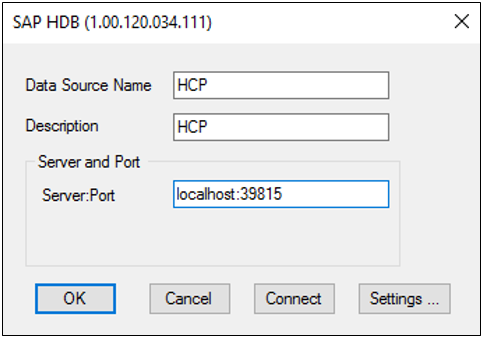
Search for ODBC Data Source in your programs and under “System DSN” maintain a new data source connection. In the below screen, I have maintained one with the name “HCP”

SAP Cloud Platform, SAP HANA, SAP HANA Learning, SAP All Modules List, SAP Module, Python, SAP HANA Certificaions

In the connection details, I have provided localhost:39815. When I try to test the connection, it will ask me for the HANA DB user credentials and it will give a successful message if everything works fine. I have got Cloud Connector, ODBC and PA software all on the same laptop.

SAP Cloud Platform, SAP HANA, SAP HANA Learning, SAP All Modules List, SAP Module, Python, SAP HANA Certificaions

For demonstration purposes, I have created a schema ADM_DEMO which has demo data on banking customers and their transactions. The transaction table has got millions of records which we can use for predicting the customer churn.

SAP Cloud Platform, SAP HANA, SAP HANA Learning, SAP All Modules List, SAP Module, Python, SAP HANA Certificaions

I am going to show to get started with Predictive Analytics (on-premise) and connect to HANA DB on SAP Cloud Platform. I am not an expert on PA, but just showing a very basic scenario which created a table back in HANA. I would recommend using Predictive Analytics 3.2 version.

Launch the PA software on your laptop and click on “Create Data Manipulation” under Data Manger.

SAP Cloud Platform, SAP HANA, SAP HANA Learning, SAP All Modules List, SAP Module, Python, SAP HANA Certificaions

In the Data sources, select the one created in ODBC and provide the HANA DB login credentials.

SAP Cloud Platform, SAP HANA, SAP HANA Learning, SAP All Modules List, SAP Module, Python, SAP HANA Certificaions

Select the Table by browsing through the available schemas.

SAP Cloud Platform, SAP HANA, SAP HANA Learning, SAP All Modules List, SAP Module, Python, SAP HANA Certificaions

I have taken the Disposition table to begin with.

SAP Cloud Platform, SAP HANA, SAP HANA Learning, SAP All Modules List, SAP Module, Python, SAP HANA Certificaions

I can navigate to the Views tab and explore the data of this table.

SAP Cloud Platform, SAP HANA, SAP HANA Learning, SAP All Modules List, SAP Module, Python, SAP HANA Certificaions

Next, I am using the Merge option to connect with the Accounts table

SAP Cloud Platform, SAP HANA, SAP HANA Learning, SAP All Modules List, SAP Module, Python, SAP HANA Certificaions

Account_ID is the key which links both the table. I repeat the same steps for adding Client table.

SAP Cloud Platform, SAP HANA, SAP HANA Learning, SAP All Modules List, SAP Module, Python, SAP HANA Certificaions

Once I have added all the tables and linked the keys, I can view the SQL which the system has generated.

SAP Cloud Platform, SAP HANA, SAP HANA Learning, SAP All Modules List, SAP Module, Python, SAP HANA Certificaions

I can also view the contents of this Dynamic SQL within PA.

SAP Cloud Platform, SAP HANA, SAP HANA Learning, SAP All Modules List, SAP Module, Python, SAP HANA Certificaions

I can apply filters, for example to only consider Client Type with a value “Owner”

SAP Cloud Platform, SAP HANA, SAP HANA Learning, SAP All Modules List, SAP Module, Python, SAP HANA Certificaions

Once I have put the relevant filters and set the aggregations which are required, I can now save the data back into HANA as a view. In the below example, I have given the name of a table PA_CHURN.

SAP Cloud Platform, SAP HANA, SAP HANA Learning, SAP All Modules List, SAP Module, Python, SAP HANA Certificaions

After execution of this step, I can now view the processed table available in HANA database

SAP Cloud Platform, SAP HANA, SAP HANA Learning, SAP All Modules List, SAP Module, Python, SAP HANA Certificaions

In the next blog, I will show you how to connect a python program to perform data science. This has been also coming up as a frequent question especially around customers who are implementing Predictive Analytics.