Showing posts with label SAP UI5. Show all posts

Wednesday, 13 September 2017

Integrate SAP UI5 or open UI5 with Node.js

With JavaScript server side programming getting popular day by day, it clicked my mind to integrate SAP UI5 or open UI5 with Node.js.

What we are building?


We are building a UI5 based web-application which uses Node.js for backend logic. For the sake of simplicity we will create a small application which list down all the seven wonders of world with their respective location.

Prerequisites


1. Node.js should be installed on your machine. To install Node.js please visit http://nodejs.org/

2. SAPUI5  UI Development Toolkit for HTML5 should be installed on your machine. To install please visit https://tools.hana.ondemand.com/

3. Git Bash should be installed (optional). I will be using Git Bash for this demo.

Writing the backend Node.js code


In the backend, we will be exposing the data using REST service which will be consumed by the UI5 application. Following are the steps to expose a REST service via Node.js:

1. Create a new folder anywhere on your machine

2. Inside the folder, create a package.JSON file and copy the following code:

SAP UI5, UI5, SAP Node.js, SAP UI5 Learning, SAP Guides, SAP Learning, SAP Tutorials and Materials, SAP Certifications, SAPUI5 Explored

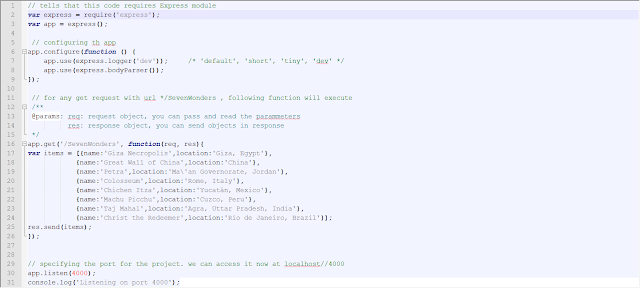
The above code gives some general description about Node.js project like name of project, description, version and most important specify the dependencies which will be used in the project. In our case, its Express module which will be used for exposing the REST APIs. A JAVA developer would be able to get the analogy between package.JSON in Node.js and pom.XML in maven.
To know more about Express module, please visit http://expressjs.com/

3. Open Git bash, in the Git Bash, Navigate to that folder and execute the following command
Npm install

The above command will install express module for the project.

4. Create a Server.js (you can choose any name of your choice) in that folder and copy paste the following code:

SAP UI5, UI5, SAP Node.js, SAP UI5 Learning, SAP Guides, SAP Learning, SAP Tutorials and Materials, SAP Certifications, SAPUI5 Explored

5. Open Git Bash and Navigate to the folder. Run to following command to host the project:

node server.js
-----------------------------------------------------------------------------------------------------
Note: server.js is the name of the .JS file which we created in step 4.
-----------------------------------------------------------------------------------------------------

Testing the hosted service


To test the service hit the URL http://localhost:4000/SevenWonders

SAP UI5, UI5, SAP Node.js, SAP UI5 Learning, SAP Guides, SAP Learning, SAP Tutorials and Materials, SAP Certifications, SAPUI5 Explored

Creating the UI


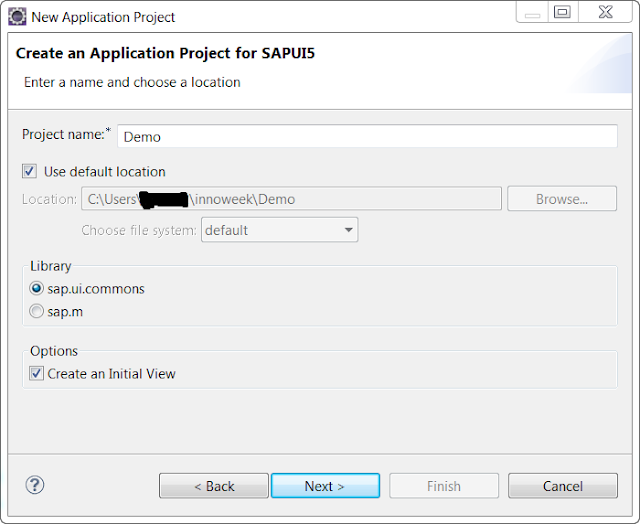
For the UI, we will be creating UI5 desktop application. We will be using eclipse with UI5 application development plugin installed in it to write the UI code:

SAP UI5, UI5, SAP Node.js, SAP UI5 Learning, SAP Guides, SAP Learning, SAP Tutorials and Materials, SAP Certifications, SAPUI5 Explored

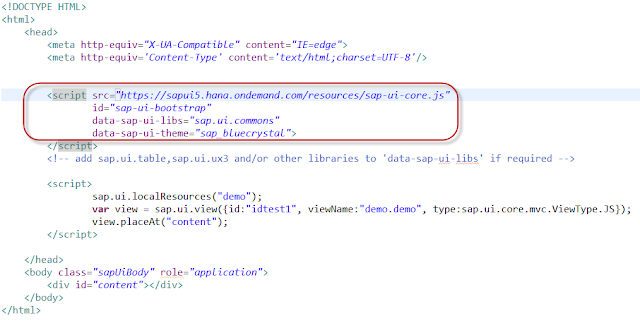
The Index.html

Nothing special in the below code, just a typical index.html for UI5 project

SAP UI5, UI5, SAP Node.js, SAP UI5 Learning, SAP Guides, SAP Learning, SAP Tutorials and Materials, SAP Certifications, SAPUI5 Explored

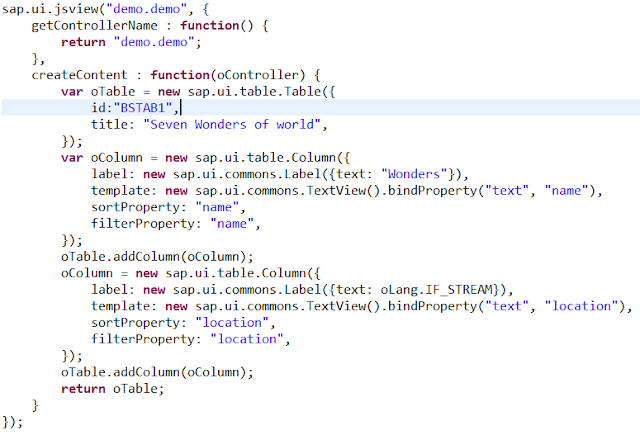
View.JS

In the view.JS file we will create a table with two columns i.e. Wonders and location:

SAP UI5, UI5, SAP Node.js, SAP UI5 Learning, SAP Guides, SAP Learning, SAP Tutorials and Materials, SAP Certifications, SAPUI5 Explored

Controller.JS

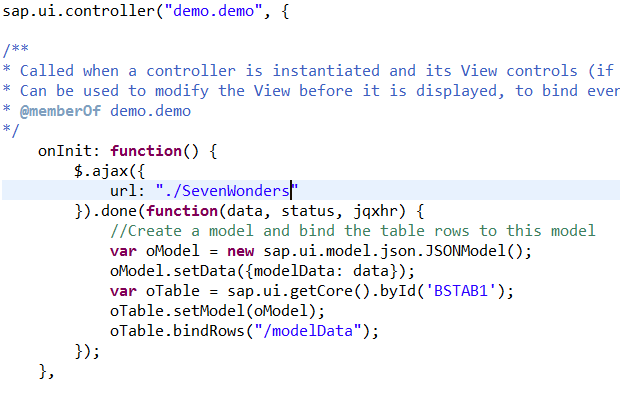
In the controller onInit() method, I have fired a get call towards our “SevenWonders” service and binding the data with the table in view.

SAP UI5, UI5, SAP Node.js, SAP UI5 Learning, SAP Guides, SAP Learning, SAP Tutorials and Materials, SAP Certifications, SAPUI5 Explored

Integrating the front and back ends


1. Navigate to the UI5 project workspace and copy the Index.html and the folder containing views and controller to your clipboard.

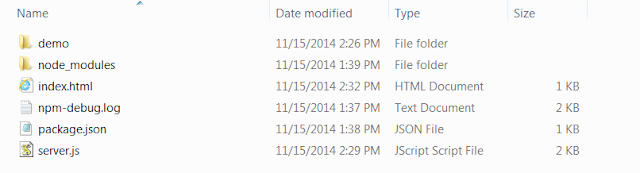
2. Paste the clipboard at the location where server.JS file exists. After copying, your folder will look like

SAP UI5, UI5, SAP Node.js, SAP UI5 Learning, SAP Guides, SAP Learning, SAP Tutorials and Materials, SAP Certifications, SAPUI5 Explored

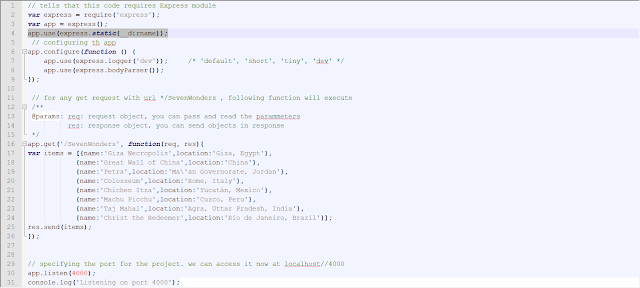
3. Add the following line of code in you server.JS

app.use(express.static(__dirname));

SAP UI5, UI5, SAP Node.js, SAP UI5 Learning, SAP Guides, SAP Learning, SAP Tutorials and Materials, SAP Certifications, SAPUI5 Explored

The above code tells to route default request (i.e. localhost:4000) to current directory, and since we have kept index.html file in the same directory, index.html will get render.

Testing the final application


1. Navigate to the directory containing server.js file and execute the following command in your Git Bash
Node server.js

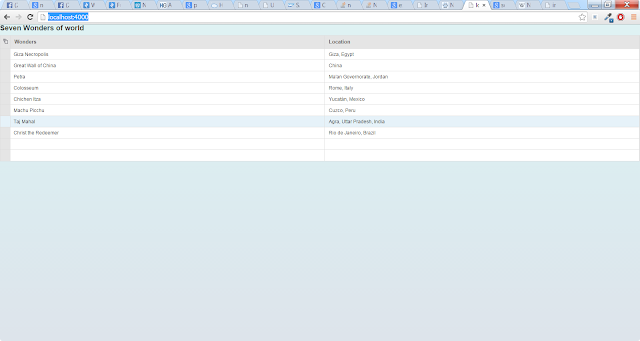
2. To test the final application just hit http://localhost:4000/ in your browser

SAP UI5, UI5, SAP Node.js, SAP UI5 Learning, SAP Guides, SAP Learning, SAP Tutorials and Materials, SAP Certifications, SAPUI5 Explored

We have successfully created, deployed and tested a complete JavaScript based web application and integrated node.Js with SAP UI5 or Open UI5.

Wednesday, 30 August 2017

SRM UI5 Boosting and Ranking

SRM UI5 boosting and ranking functionality is released with SRM 7.0 EhP4 on the HANA database.  Available with Implementation note 2383392(SRMNXP01 150).

1. Activate Boosting and Ranking Functionality for Users


After collecting the approval or rejection from end users, administrator has to first set the user settings by running the report ESH_ENG_PS_MAIN_SWITCH as shown in Figure 1.

SAP UI5, SAP Learning, SAP Guides, SAP All Modules, SAP Tutorials and Materials, SAP Certifications, SAP Live Access
Figure 1. User setting report for Boosting and Ranking framework

Description for the radio buttons in Figure 1:

◉ Label 1 – Disable Boosting and Ranking framework for all users
◉ Label 2 – Enable Boosting and Ranking framework for all users
◉ Label 3 – Boosting and Ranking framework is enabled for a specific user after the user is added to the user list in label 5 area
◉ Label 4 – Boosting and Ranking framework is disabled for a specific user after the user is added to the user list in label 5 area.

2. Boosting Configuration for Standard Request Attributes


You can configure the boosting of standard request attributes. For example, you are searching with the term “laptop” to find all laptops from available manufacturers. If you prefer laptops from Apple manufacturer to be displayed on the top of the result list, you can create a ranking factor ‘Z_MANUFACTURER_NAME’ and configure it so that manufacturer Apple weighs more heavily in the calculation of ranking scores. This way, the ranking factor influences the ranking scores and certain group of search results are boosted to the top.

Manual Steps for Boosting Configuration of Standard Request Attributes


You must create your own ranking factors to boost standard attributes which are marked as freestyle search in the search result model. For example, to ensure that laptops from Apple manufacturer are displayed in the top results, configure the manufacturer with value “Apple” as follows:

1. Create a new customer ranking factor

1.1 Run the report ESH_PS_ESPROV_CREATE_DIM, choosing Owing ES-software Component – SRMNXP01. Enter the name of the ranking factor (Ranking Dimension ID), short description, and attributes. These are mandatory inputs, which defines a ranking factor. In Figure 2, ranking factor Z_MANUFACTURER_NAME is created.

SAP UI5, SAP Learning, SAP Guides, SAP All Modules, SAP Tutorials and Materials, SAP Certifications, SAP Live Access
Figure 2. Create a ranking factor

1.2 Execute the report to finish the creation.

2. Assign the newly created ranking factor to the search connector

2.1 Go to transaction ESH_COCKPIT to open the connector administration cockpit in SRM application server.

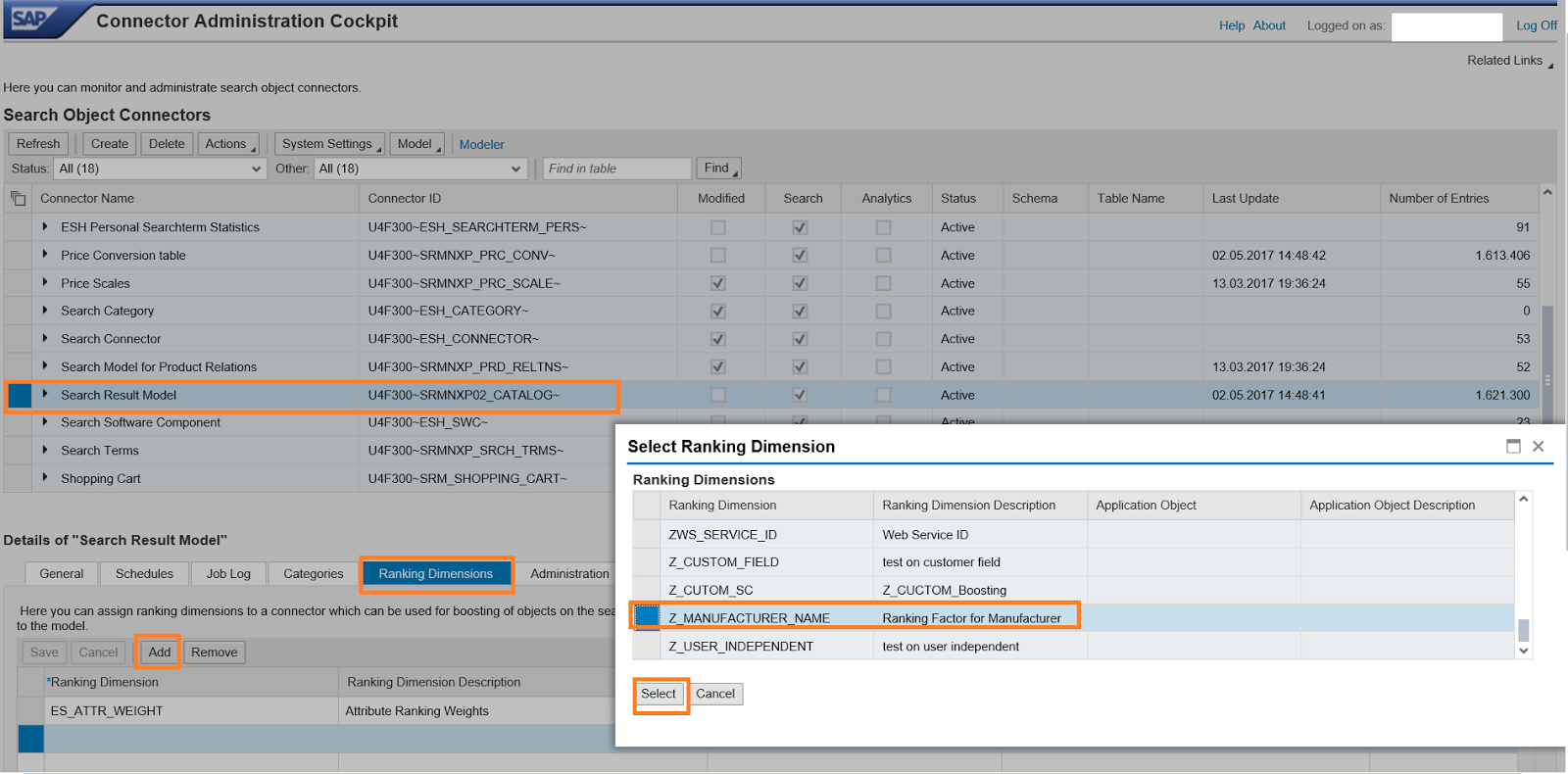
2.2 Select the connector Search Result Model SRMNXP02_CATALOG.

2.3 On the tab Ranking Dimension, click on Add button and Select the customer created ranking factor through F4 search help.

SAP UI5, SAP Learning, SAP Guides, SAP All Modules, SAP Tutorials and Materials, SAP Certifications, SAP Live Access
Figure 3. Assign a ranking factor in ESH_COCKPIT

2.4 Assign the standard Request Attribute in the search model to the ranking factor through F4 search help. In our example, the corresponding request attribute MANUFACTNAME is mapped to the ranking factor Z_MANUFACTURER_NAME in Figure 4.

SAP UI5, SAP Learning, SAP Guides, SAP All Modules, SAP Tutorials and Materials, SAP Certifications, SAP Live Access
Figure 4. Map the request attribute to the ranking factor

2.5 Click Save to finish the assignment.

3. Create a boost to set significance for the ranking factor

3.1 Run the report ESH_PS_ESPROV_MAINT_SIG to create a boost with significance manually. The boost entry is required to boost a specific manufacturer above others.

3.2 Choose the Dimension ID Z_MANUFACTURER_NAME through F4 search help in Figure 5. The User field is optional for a user-dependent ranking factor. For a user-independent ranking factor, leave this field empty. In our example, ranking factor Z_MANUFACTURER_NAME is created as user-dependent. Therefore, the created boost entry will take effect only for the user whoever is entered in this field. On the other hand, the created boost entry will apply to all users if this field is left empty.

3.3 Execute the report.

SAP UI5, SAP Learning, SAP Guides, SAP All Modules, SAP Tutorials and Materials, SAP Certifications, SAP Live Access
Figure 5. Execute the report to create a boost

3.4 In the next screen, click + to create a new boost entry. Enter the value ‘Apple’. This value should be valid in the product items, that is, this value must be found in the report ESH_TEST_SEARCH for example. Choose a significant weight between 0 and 1. This is how you can decide the priority among different manufacturers. Click on Execute button to complete the boost entry.

SAP UI5, SAP Learning, SAP Guides, SAP All Modules, SAP Tutorials and Materials, SAP Certifications, SAP Live Access
Figure 6. Maintain significances

3.5 Click Save to save the settings in the system.

To view enterprise search results boosted by the relevance ranking factor, do the following:

◉ Ensure that the end user has been activated for the Boosting and Ranking functionality in the report ESH_ENG_PS_MAIN_SWITCH.
◉ Navigate to the SRM UI Add-On portal and refresh it. Use the same search term ‘laptop’. The order of the search result list is now according to the relevance ranking factor. The product item with manufacturer name ‘Apple’ has been boosted to the top in Figure 7.
◉ To see the actual ranking scores, perform the same search in the report ESH_TEST_SEARCH.

SAP UI5, SAP Learning, SAP Guides, SAP All Modules, SAP Tutorials and Materials, SAP Certifications, SAP Live Access
Figure 7. UI search results with the boost applied

3. Ranking Configuration based on the Click Counter


Whenever user clicks ‘Add to Cart’ on a product item and add it to the temparory cart, system catches this event, transfers this click to a boost with a significance weight, and stores the boost in the system automatically. After refreshing the UI, the newly clicked product item will be boosted in the search result list. Product items that are clicked often have higher ranking scores than the ones that are clicked less often.

Manual Steps of Ranking Configuration


SAP provides the standard ranking factor to configure boosting based on the click counter – SRMNXP_ADD_CART_EVENT. To enable the ranking functionality, assign the standard ranking factor to the ESH_COCKPIT and link it to the key request attribute of the search model. Do the following manual steps:

1. Go to transaction ESH_COCKPIT to open the connector administration cockpit in SRM application server.
2. Select the connector Name Search Result Model for SRMNXP02_CATALOG. This connector must be activated.
3. On the tab Ranking Dimension, click Add button and Select the standard ranking factor SRMNXP_ADD_CART_EVENT through F4 search help.
4. Assign the key Request attribute PRODUCTKEY of the search model to the ranking factor through F4 search help.
5. Save.

SAP UI5, SAP Learning, SAP Guides, SAP All Modules, SAP Tutorials and Materials, SAP Certifications, SAP Live Access
Figure 8. Assign standard ranking factor in the ESH_COCKPIT

Now user can test the ranking results based on the click counter. Double check the setting of the user in the personalized search main switch by the report ESH_ENG_PS_MAIN_SWITCH. The user must be activated as a prerequisite.

In SRM UI Add-on search portal, go back to the search result list and add one product item to the temporary cart by clicking on ‘Add to Cart’ button. After refreshing the portal and doing the same search, the order of result items should be different – the clicked item should have been boosted. To see the actual ranking scores, perform the same search in the report ESH_TEST_SEARCH.

BAdI for Ranking Functionality


A Business Add-In (BAdI) is provided to filter a search item for the ranking functionality, which means without translating the click action for this item into a boost in the system. Customer has flexibility to filter certain items for the ranking according to the organization requirements by implementing this BAdI.

Enhancement Spot: /SRMNXP/BD_FILTER_RANKING

BAdI Definition: /SRMNXP/BD_FILTER_RANKING

Interface Method FILTER_ITEM provides access to the tempory cart shopping cart item.

Wednesday, 11 May 2016

Types of binding in Sap Ui5

This blog explains the basic concepts and demo of binding options in Sap UI5.

Tools used:

  • Eclipse Luna Service Release 1
  • Tomcat Apache (Server)
  • SAP UI5 Plug-in installed in Eclipse.
  • Google Chrome
Sap ui5 provides three binding options
  • Property binding
  • Aggregation binding
  • Element binding

Property Binding: To bind the properties of the control to the model.

Property Binding can be done by three ways.
  • Within curly brackets in the constructor
  • By bind property method
  • By path

Generic coding to achieve the property binding.


Within curly brackets in the constructor

var oControl = new sap.ui.commons.TextView({
controlProperty: “{modelProperty}”
});

By Bind Property Method
  • oControl.bindProperty(
“controlProperty”, “modelProperty”);

By Path

var oControl = new sap.ui.commons.TextView({
controlProperty: { path: “modelProperty” }
});

Property binding demo:

In this demo we are going to display the properties of the table by using all three options of property binding.

Step 1: Create the Sap UI5 Application project

In Eclipse, File–>New–>other and select “SAP UI5 Application Development” –>Application Project and click on next button.
Provide the project name and click on next button.

Step 2:  Implement the following code under the createcontent method.
var aGalaxy = [
                    {“Planet” : “Mercury”,“Diameter”:“5,100”,“Gravity”:0.40},
                       {“Planet” : “Venus”,“Diameter”:“12,600”,“Gravity”:0.90},
                       {“Planet” : “Earth”,“Diameter”:“12,800”,“Gravity” : 1.00},
                       {“Planet” : “Mars”,“Diameter”:“6,900”,“Gravity” : 0.40},
                       {“Planet” : “Jupiter”,“Diameter”:“143,600”,“Gravity”:2.70},
                       {“Planet” : “Saturn”,“Diameter”:“120,600”,“Gravity” : 1.20},
                       {“Planet” : “Uranus”,“Diameter”:“53,400”,“Gravity” : 1.00},
                       {“Planet” : “Pluto”,“Diameter” : “12,700”,“Gravity” : 1.40} ];
   
              var oModel = new sap.ui.model.json.JSONModel({
                     values : aGalaxy
              });
                 
            // Create instance of table control
var oTable = new sap.ui.table.Table({
               title : “Physical characteristics of planets”,
               visibleRowCount : 8,
               firstVisibleRow : 0,
               width : “500px”
});

SAP Modules, SAP Module, Tutorial and Certification, SAP UI5, SAP Guides, SAP Online Guides

// Bind model to table control

oTable.setModel(oModel);
oTable.bindRows(“/values”);
oTable.placeAt(“content”);

Remember to include the library “sap.ui.table” in the index.html

  <script src=”resources/sap-ui-core.js”
         id=”sap-ui-bootstrap”
         data-sap-ui-libs=”sap.ui.commons,sap.ui.table”
         data-sap-ui-theme=”sap_bluecrystal”>
        </script

Result:

Right click on the index.html and select the option run on server.

SAP Modules, SAP Module, Tutorial and Certification, SAP UI5, SAP Guides, SAP Online Guides

Aggregation Binding


The control element is binded by collection of values. The control element then acts as a data container and also represents a template of the data to be displayed.

Aggregation Binding Demo:

In this demo we are going to display the error log from the local json model using the aggregation binding.

Step 1: Create the Sap UI5 Application project

In Eclipse, File–>New–>other and select “SAP UI5 Application Development” –>Application Project and click on next button.
Provide the project name and click on next button.

Step 2:  Implement the following code under the createcontent method.
      
 // Create instance of JSON Model
              var oModel = new sap.ui.model.json.JSONModel({
                     Value:
                           [{“index”: “0”,“level”:“Success”,“description”: “Performance is good”},
                           {“index”: “1”,“level”:“Warning”,“description”: “Service not available.”},
                           {“index”: “2”,“level”:“Error”,“description”: “Record not found”}]
              });
              // Bind Model to core
       sap.ui.getCore().setModel(oModel);
              // Create template of message type
              var oRowTemplate = new sap.ui.commons.Message({
                     text : “{description}”,
                     type : “{level}”
              });
              // Create RowRepeater and bind message template
              var oRowRepeater = new sap.ui.commons.RowRepeater();
              oRowRepeater.bindRows(“/Value”, oRowTemplate);
              oRowRepeater.placeAt(“content”);
Result:

Right click on the index.html and select the option run on server.

SAP Modules, SAP Module, Tutorial and Certification, SAP UI5, SAP Guides, SAP Online Guides

Element Binding


An element to be bound to an object in the Model can be achieved by Element binding. The context of the relative binding to a control is represented by the Element control. In order to display a detailed list for the selected header information you need to have this parent-child binding.

Element Binding Demo:

In this demo we are going to displaying the menu from the parent table weekdays from the local json model and based on the selection in the parent table values are changed in the child table meals by element binding.


Step 1: Create the Sap UI5 Application project

In Eclipse, File–>New–>other and select “SAP UI5 Application Development” –>Application Project and click on next button.

Provide the project name and click on next button

Step 2: Implement the following code under the createcontent method.

var oModel = new sap.ui.model.json.JSONModel({
                     weekdays:
                           [{“day”: “Monday”,“no_meals”:“2”,“id”: “1”},
                            {“day”: “Tuesday”,“no_meals”:“1”,“id”: “2”},
                            {“day”: “Wednesday”,“no_meals”:“2”,“id”: “3”},
                            {“day”: “Thursday”,“no_meals”:“2”,“id”: “4”},
                            {“day”: “Friday”,“no_meals”:“1”,“id”: “5”}], 
                     meals:
                     [{“MealNo”: “1”,“dayId”: “1”,“items”: “French fries”},
                      {“MealNo”: “2”,“dayId”: “1”,“items”: “French toast”},
                      {“MealNo”: “3”,“dayId”: “2”,“items”: “French fries with Burger”},
                      {“MealNo”: “4”,“dayId”: “3”,“items”: “Hot Dog”},
                      {“MealNo”: “5”,“dayId”: “3”,“items”: “French Fries”},
                      {“MealNo”: “6”,“dayId”: “4”,“items”: “Donut”},
                      {“MealNo”: “7”,“dayId”: “4”,“items”: “Hot Dog”},
                      {“MealNo”: “8”,“dayId”: “5”,“items”: “French toast”},
              
                      ]
              });
              sap.ui.getCore().setModel(oModel);      
              // Table with weekdays
              var oTable = new sap.ui.table.Table({
              width : “100%”,
              title : “Weekdays”,
              visibleRowCount : 5,
              selectionMode : sap.ui.table.SelectionMode.Single,
              });
              oTable.addColumn(new sap.ui.table.Column({
              label: new sap.ui.commons.Label({text: “Weekday”}),
              template: new sap.ui.commons.TextField({value:“{day}”})
              }));
              oTable.addColumn(new sap.ui.table.Column({
                     label: new sap.ui.commons.Label({text: “No Meals”}),
                     template: new sap.ui.commons.TextField({value:“{no_meals}”})
                     }));
             
              oTable.bindRows(“/weekdays”);
              oTable.placeAt(“parent”);        
             
// Display of meals
              var oTable2 = new sap.ui.table.Table({
              title : “Meals”,
              visibleRowCount : 3,
              width : “100%”,
              selectionMode : sap.ui.table.SelectionMode.Single,
              editable : false
              });
              oTable2.addColumn(new sap.ui.table.Column({
              label: new sap.ui.commons.Label({text: “Meal”}),
              template: new sap.ui.commons.TextField({value:“{MealNo}”})
              }));
      
              oTable2.addColumn(new sap.ui.table.Column({
              label: new sap.ui.commons.Label({text: “Description”}),
              template: new sap.ui.commons.TextField({value:“{items}”})
              }));
              oTable2.bindRows(“/meals”);
              oTable2.placeAt(“child”);

SAP Modules, SAP Module, Tutorial and Certification, SAP UI5, SAP Guides, SAP Online Guides

Remember to include the library “sap.ui.table” in the index.html

  <script src=”resources/sap-ui-core.js”
         id=”sap-ui-bootstrap”
         data-sap-ui-libs=”sap.ui.commons,sap.ui.table”
         data-sap-ui-theme=”sap_bluecrystal”>
        </script

Result:

Right click on the index.html and select the option run on server.

SAP Modules, SAP Module, Tutorial and Certification, SAP UI5, SAP Guides, SAP Online Guides

Friday, 12 February 2016

SAP UI5 Automation

I am writing this article to explain a unique-out-of-the-box  concept of automating UI5 applications which addresses most of the  challenges faced in automating  UI5 applications

Some of the most common challenges in automating UI5 applications are:

◉ Ids not stable

In UI5 applications IDs are unique in a given page, but there is no guarantee that these IDs will remain stable across multiple iterations of the business flow, which makes it unfeasible to use it as a identifying locator for entire business flow.

◉ No standard way of identifying UI5 element

There are multiple ways (locators) to identify a UI5 element , some of them are   XPath,css,HTML tags,Ids (not stable over iterations as discussed above) etc. Stability of the automation scripts largely depends on how well these locators are used and how unique they are in identifying the UI5 element.

◉ Sync issues

Script failure due to syncing of UI5 elements is one of the biggest concern which is causing a lot of discomfort for the automation developers

◉ Ease of use

All of the points mentioned above makes it really difficult for automation developers to write stable scripts easily

◉ Customization and Maintenance

Again for the points mentioned above a lot of effort is required in maintaining the script stability whenever the properties of the locators change over       period of time

◉ Solution

This UI5 Automation framework is a JavaScript based solution with two components

Browser extension – Displays the DoM structure of the UI5 page in UI5-elements-format, and a context menu  to capture the properties/events of selected UI5 element as shown in the figure below

Extension of Protractor – A JavaScript based tool, handles sync between UI5 elements exceptionally well. The data captured through browser extension context menu is used to create the business flow and run via this tool against any browser (perhaps mobile too…not yet tested)

The uniqueness of this framework is that the automation is based on the UI5 element structure and not normal HTML DoM, which makes it very stable in identification and maintainable.

SAP UI5 Automation, SAP UI5, SAP Guides, SAP Learning, SAP Certifications

If this concept interests you, let me know if you want to understand the framework in depth and I can share more details. I will be modifying this blog to make it more elaborate and more clearer in coming days.