Showing posts with label SAP Supplier Relationship Management. Show all posts

Wednesday, 30 August 2017

SRM UI5 Boosting and Ranking

SRM UI5 boosting and ranking functionality is released with SRM 7.0 EhP4 on the HANA database.  Available with Implementation note 2383392(SRMNXP01 150).

1. Activate Boosting and Ranking Functionality for Users


After collecting the approval or rejection from end users, administrator has to first set the user settings by running the report ESH_ENG_PS_MAIN_SWITCH as shown in Figure 1.

SAP UI5, SAP Learning, SAP Guides, SAP All Modules, SAP Tutorials and Materials, SAP Certifications, SAP Live Access
Figure 1. User setting report for Boosting and Ranking framework

Description for the radio buttons in Figure 1:

◉ Label 1 – Disable Boosting and Ranking framework for all users
◉ Label 2 – Enable Boosting and Ranking framework for all users
◉ Label 3 – Boosting and Ranking framework is enabled for a specific user after the user is added to the user list in label 5 area
◉ Label 4 – Boosting and Ranking framework is disabled for a specific user after the user is added to the user list in label 5 area.

2. Boosting Configuration for Standard Request Attributes


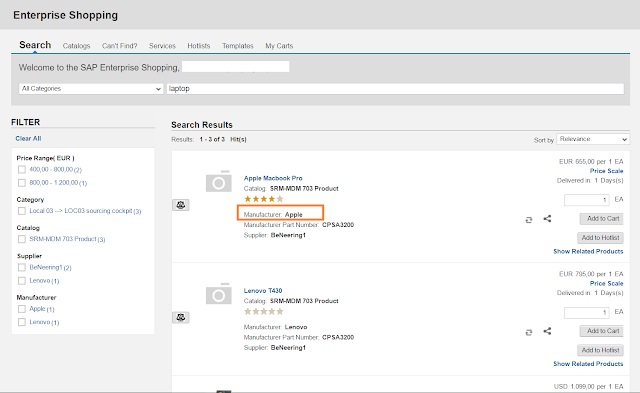
You can configure the boosting of standard request attributes. For example, you are searching with the term “laptop” to find all laptops from available manufacturers. If you prefer laptops from Apple manufacturer to be displayed on the top of the result list, you can create a ranking factor ‘Z_MANUFACTURER_NAME’ and configure it so that manufacturer Apple weighs more heavily in the calculation of ranking scores. This way, the ranking factor influences the ranking scores and certain group of search results are boosted to the top.

Manual Steps for Boosting Configuration of Standard Request Attributes


You must create your own ranking factors to boost standard attributes which are marked as freestyle search in the search result model. For example, to ensure that laptops from Apple manufacturer are displayed in the top results, configure the manufacturer with value “Apple” as follows:

1. Create a new customer ranking factor

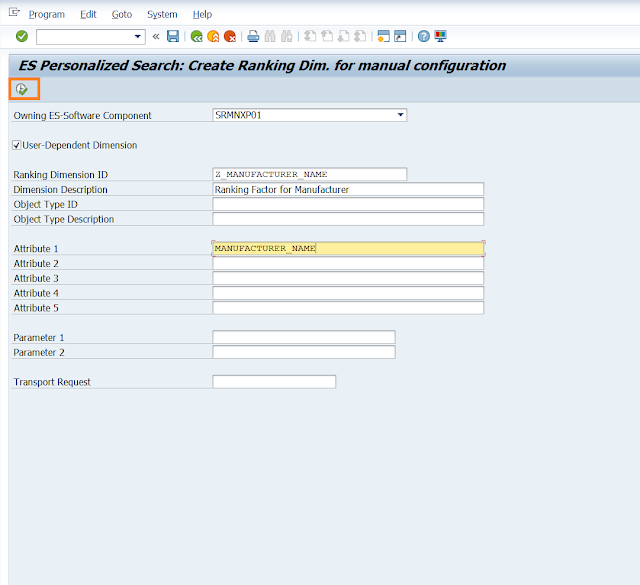
1.1 Run the report ESH_PS_ESPROV_CREATE_DIM, choosing Owing ES-software Component – SRMNXP01. Enter the name of the ranking factor (Ranking Dimension ID), short description, and attributes. These are mandatory inputs, which defines a ranking factor. In Figure 2, ranking factor Z_MANUFACTURER_NAME is created.

SAP UI5, SAP Learning, SAP Guides, SAP All Modules, SAP Tutorials and Materials, SAP Certifications, SAP Live Access
Figure 2. Create a ranking factor

1.2 Execute the report to finish the creation.

2. Assign the newly created ranking factor to the search connector

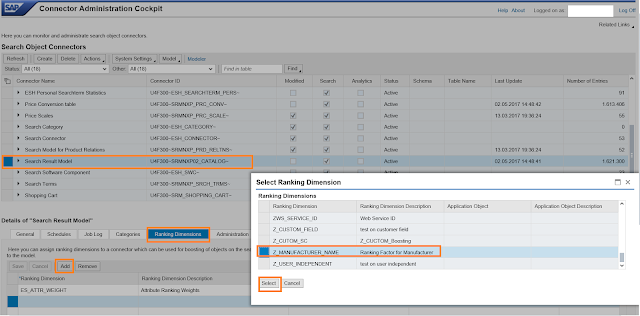
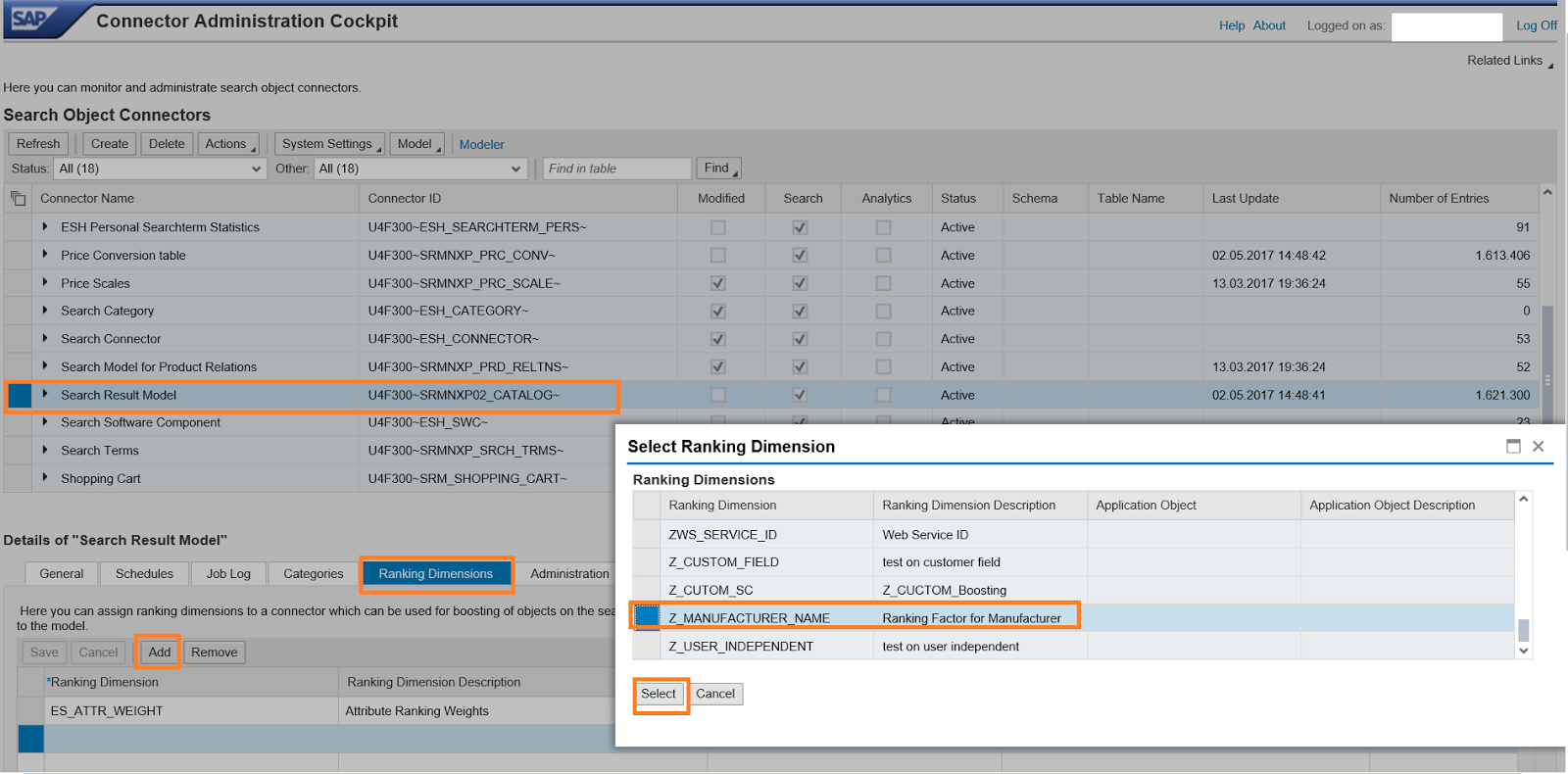
2.1 Go to transaction ESH_COCKPIT to open the connector administration cockpit in SRM application server.

2.2 Select the connector Search Result Model SRMNXP02_CATALOG.

2.3 On the tab Ranking Dimension, click on Add button and Select the customer created ranking factor through F4 search help.
SAP UI5, SAP Learning, SAP Guides, SAP All Modules, SAP Tutorials and Materials, SAP Certifications, SAP Live Access
Figure 3. Assign a ranking factor in ESH_COCKPIT

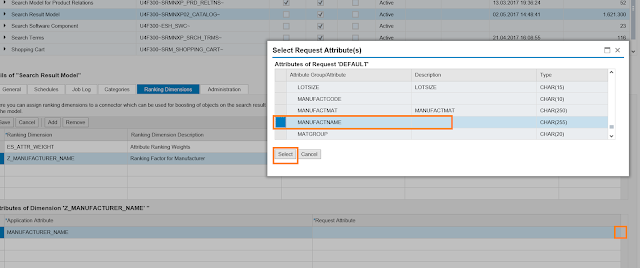
2.4 Assign the standard Request Attribute in the search model to the ranking factor through F4 search help. In our example, the corresponding request attribute MANUFACTNAME is mapped to the ranking factor Z_MANUFACTURER_NAME in Figure 4.

SAP UI5, SAP Learning, SAP Guides, SAP All Modules, SAP Tutorials and Materials, SAP Certifications, SAP Live Access
Figure 4. Map the request attribute to the ranking factor

2.5 Click Save to finish the assignment.

3. Create a boost to set significance for the ranking factor

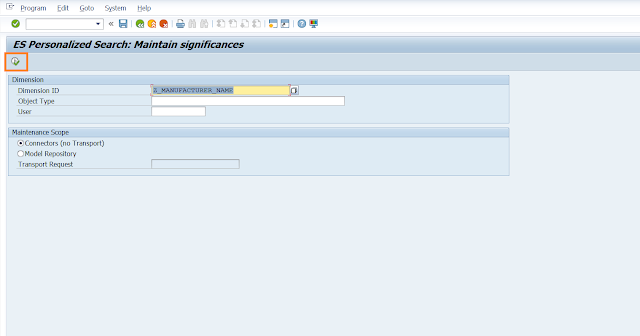
3.1 Run the report ESH_PS_ESPROV_MAINT_SIG to create a boost with significance manually. The boost entry is required to boost a specific manufacturer above others.

3.2 Choose the Dimension ID Z_MANUFACTURER_NAME through F4 search help in Figure 5. The User field is optional for a user-dependent ranking factor. For a user-independent ranking factor, leave this field empty. In our example, ranking factor Z_MANUFACTURER_NAME is created as user-dependent. Therefore, the created boost entry will take effect only for the user whoever is entered in this field. On the other hand, the created boost entry will apply to all users if this field is left empty.

3.3 Execute the report.

SAP UI5, SAP Learning, SAP Guides, SAP All Modules, SAP Tutorials and Materials, SAP Certifications, SAP Live Access
Figure 5. Execute the report to create a boost

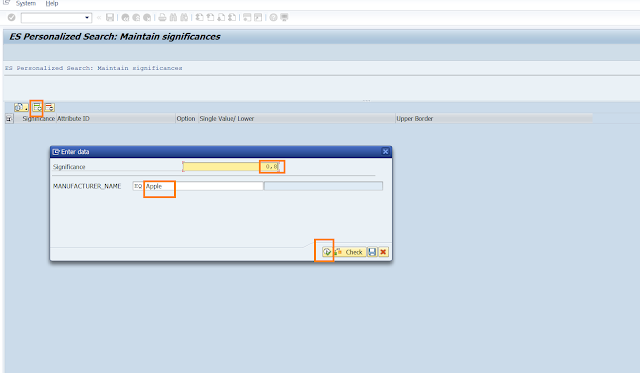
3.4 In the next screen, click + to create a new boost entry. Enter the value ‘Apple’. This value should be valid in the product items, that is, this value must be found in the report ESH_TEST_SEARCH for example. Choose a significant weight between 0 and 1. This is how you can decide the priority among different manufacturers. Click on Execute button to complete the boost entry.

SAP UI5, SAP Learning, SAP Guides, SAP All Modules, SAP Tutorials and Materials, SAP Certifications, SAP Live Access
Figure 6. Maintain significances

3.5 Click Save to save the settings in the system.

To view enterprise search results boosted by the relevance ranking factor, do the following:

◉ Ensure that the end user has been activated for the Boosting and Ranking functionality in the report ESH_ENG_PS_MAIN_SWITCH.
◉ Navigate to the SRM UI Add-On portal and refresh it. Use the same search term ‘laptop’. The order of the search result list is now according to the relevance ranking factor. The product item with manufacturer name ‘Apple’ has been boosted to the top in Figure 7.
◉ To see the actual ranking scores, perform the same search in the report ESH_TEST_SEARCH.

SAP UI5, SAP Learning, SAP Guides, SAP All Modules, SAP Tutorials and Materials, SAP Certifications, SAP Live Access
Figure 7. UI search results with the boost applied

3. Ranking Configuration based on the Click Counter


Whenever user clicks ‘Add to Cart’ on a product item and add it to the temparory cart, system catches this event, transfers this click to a boost with a significance weight, and stores the boost in the system automatically. After refreshing the UI, the newly clicked product item will be boosted in the search result list. Product items that are clicked often have higher ranking scores than the ones that are clicked less often.

Manual Steps of Ranking Configuration


SAP provides the standard ranking factor to configure boosting based on the click counter – SRMNXP_ADD_CART_EVENT. To enable the ranking functionality, assign the standard ranking factor to the ESH_COCKPIT and link it to the key request attribute of the search model. Do the following manual steps:

1. Go to transaction ESH_COCKPIT to open the connector administration cockpit in SRM application server.
2. Select the connector Name Search Result Model for SRMNXP02_CATALOG. This connector must be activated.
3. On the tab Ranking Dimension, click Add button and Select the standard ranking factor SRMNXP_ADD_CART_EVENT through F4 search help.
4. Assign the key Request attribute PRODUCTKEY of the search model to the ranking factor through F4 search help.
5. Save.

SAP UI5, SAP Learning, SAP Guides, SAP All Modules, SAP Tutorials and Materials, SAP Certifications, SAP Live Access
Figure 8. Assign standard ranking factor in the ESH_COCKPIT

Now user can test the ranking results based on the click counter. Double check the setting of the user in the personalized search main switch by the report ESH_ENG_PS_MAIN_SWITCH. The user must be activated as a prerequisite.

In SRM UI Add-on search portal, go back to the search result list and add one product item to the temporary cart by clicking on ‘Add to Cart’ button. After refreshing the portal and doing the same search, the order of result items should be different – the clicked item should have been boosted. To see the actual ranking scores, perform the same search in the report ESH_TEST_SEARCH.

BAdI for Ranking Functionality


A Business Add-In (BAdI) is provided to filter a search item for the ranking functionality, which means without translating the click action for this item into a boost in the system. Customer has flexibility to filter certain items for the ranking according to the organization requirements by implementing this BAdI.

Enhancement Spot: /SRMNXP/BD_FILTER_RANKING

BAdI Definition: /SRMNXP/BD_FILTER_RANKING

Interface Method FILTER_ITEM provides access to the tempory cart shopping cart item.

Thursday, 16 February 2017

SRM UI5 Add-on : SC Creation Important classes to remember

I am going to share some helpful information for SRM UI5 Add-on developers ( with ABAP knowledge ) about important classes that you need to remember while debugging any issues related to SC creation and also how these classes communicate with each other and their purpose in overcall SC creation.

SAP Supplier Relationship Management, SAPUI5, All SAP Modules

There are five important class involved.

/SRMNXP/CL_BO_DA_SHOPPING_CART:  this class is runtime class for SRMSHOPPING_CART OData service (responsible for entity types ShoppingcartItemCollection and ShoppingcarCollection) that is responsible for SC creation. So everything starts and end in this class. Data entered on the UI5 screen is passed to this class and also data that is to be displayed finally in the screen is passed back to this class. Inside most of the methods of the class the actual work is delegated to /SRMNXP/CL_TEMPORARY_CART and /SRMNXP/CL_INTL_PDO_SC.

/SRMNXP/CL_BO_DA_PDO_CART:  This class has same purpose as above class but is responsible for entity types SRMShoppingcartItemCollection and SRMShoppingcarCollection. This class comes into picture, if you are adding item to a SC which was already saved in database or when you click on item details or any other tab in the item details.

/SRMNXP/CL_TEMPORARY_CART:  This class manages the temporary cart until it is completely ordered or SAVE&CLOSE button is clicked or entire minicart is deleted. This class communicates with class /SRMNXP/CL_BO_DA_SHOPPING_CART and /SRMNXP/CL_INTL_PDO_SC.

/SRMNXP/CL_INTL_PDO_SC: This class acts as an intermediate layer (I assume that is the reason for INTL in its name) between /SRMNXP/CL_TEMPORARY_CART and /SAPSRM/CL_PDO_BO_SC_ADV.

/SAPSRM/CL_PDO_BO_SC_ADV:  This is our old PDO friend that is responsible for creation of SC in SRM (this class existed since golden era of webdynpro in SRM 7.0).

SAP Supplier Relationship Management, SAPUI5, All SAP Modules

Friday, 12 August 2016

Workflow in SRM User Interface Add-On 1.0

This blog provides insights about workflow in SRM Shopping Cart UI Add-On, draws parallel with Webdynpro and talks about how different workflow scenarios are incorporated.

To begin with SRM SC UI Add-On supports both AC and PC workflows. There is no additional configuration required. The existing configuration data is read and approver or approval chain is determined.You can also add adhoc approvers and reviewers. Let us take a look at what’s in store for workflow scenarios in SRM UI Add-On.

Approval preview:


The approval preview has a different look and feel as shown below:

SAP Supplier Relationship Management, All SAP Modules, SAP UI

Clicking on ‘Add approver’ will open up the following row where you can search for approver via first name, last name or user ID:

SAP Supplier Relationship Management, All SAP Modules, SAP UI

Here if you have to add an adhoc approver above current level then you have to choose sequence number as ‘001’ from the drop down; if you want to add approver after current level then you choose sequence number as ‘002’ from the drop down and then click on add to add adhoc approver.

In AC workflow, you can also replace existing approvers.

Workflow scenarios:


  • Recall scenario:

Once a shopping cart is ordered, you can edit and recall an awaiting approval cart as shown below:

SAP Supplier Relationship Management, All SAP Modules, SAP UI

We do not have ‘show my task’ button in UI addon, but we open an awaiting approval cart directly in edit mode from ‘my carts’ tab when user has recalled that cart and has a valid revision workitem associated with it. This holds good for AC and PC workflow.

PC workflow:

Changed data in carts with PC workflow is saved by using enter key and user can add new items to the cart.

AC workflow:

User has to click on save in order to save changed data and thereby cart will switch to display mode You cannot add new items after recalling an AC workflow cart.
  • Inquire scenario:
User can open accept/adjust workitem from Suite Inbox and UWL. You can accept the decision or edit the cart. This holds good only if cart is created from SRM UI Add-On.

SAP Supplier Relationship Management, All SAP Modules, SAP UI

UWL configuration:


Please refer note 1892681 to set up UWL for UI Add-On. This configuration is only for employee user. Employee can access Accept/Adjust and Revision workitems from UWL via UI Addon if shopping cart is created in UI Addon. Alternately you can also use Suite Inbox in order to access these workitems.

Saturday, 16 April 2016

SRM Milestone Plan

What is a Milestone Plan?


A written acquisition plan reflecting the major activities (Milestone Events) to be accomplished in processing the acquisition.

Brief overview of functionality


◉ Procurement Milestones are standard for all contracting writing systems – satisfies U.S. Federal requirements (DoD and Civilian) to track PALT – Procurement Action Lead Time
◉ Milestone Plans are used to track dates related to a particular event / events in the Procurement life cycle(which could take several months to complete)
◉ Enables management to track Procurement in progress and Identify Bottle-necks

Milestone Plan Business Object –  Milestone Plan is represented using the new business object BUS2214 in SRM.

Milestone Plan Template – A template is selected as a starting point for the Milestone Plan. It is a list of Milestone Events with dependencies and mapped standard and customer defined date fields and Alerts.

Milestone Event – An individual event within the Milestone Plan. It is possible to have standard and custom events.

Milestone Plan features


◉ Customizable Milestone Plan Templates and Events
◉ Automatic update of Milestone Plan Event Actual dates*
◉ Integration to SRM Business Objects(SC, RFx, PO, CTR) and Sourcing Cockpit
◉ Alerts for Milestone Plan Events
◉ Approval workflow
◉ POWL report
◉ BI extractor

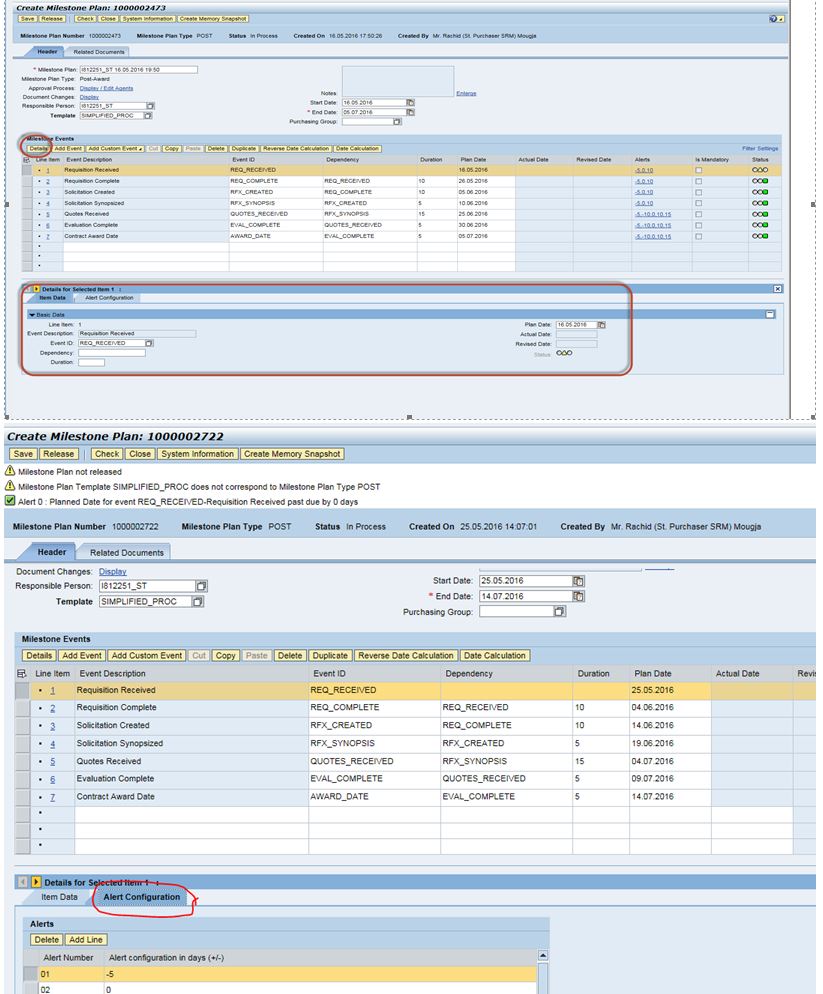
Sample Milestone Plan(Simplified Procurement with Synopsis)

SAP SRM, SAP Module, SAP Learning, SAP Live, SAP Tutorial, SAP Material, SAP Guides

Customizing settings

1. Activate Business function SRM_MP_1 (sfw5)

2. Maintain the customizing in spro under SAP IMG -> Supplier Relationship Management -> SRM Server -> Milestone Plan

   ◉  Activate/Deactivate Milestone Plan (sm30: /sapsrm/v_sw_act)

   ◉ Define Alert Notification Schema (sm30: BBPV_MP_NOTIF)

   ◉ Define Condition Schema    (sm30: BBPV_MP_CND_SCHM)

   ◉ Define Events (sm34: BBPVC_MP_EVENT)

   ◉ Define Templates (sm34: BBPVC_MP_TEMPL)

3. Assign the portal role ‘Strategic Purchaser (EhP4)’ to the portal user

4. Assign the new SRM role ‘/SAPSRM/ST_PURCHASER_EHP4’ to the Strategic Purchaser user(or copy to your custom role).

For custom roles, add authorization object ‘BBP_PD_MP’ with the permitted activities.

5. Configure the Milestone Approval using Process Controlled Workflow

Milestone Plan creation

MILESTONE PLAN CREATION STEPS

1) Log onto the portal with your strategic purchaser

2) Click on Strategic Purchasing Tab

3) Click on Strategic Sourcing

4) Click on Milestone Plan under Services/Create Documents area.

SAP SRM, SAP Module, SAP Learning, SAP Live, SAP Tutorial, SAP Material, SAP Guides

SAP SRM, SAP Module, SAP Learning, SAP Live, SAP Tutorial, SAP Material, SAP Guides

SAP SRM, SAP Module, SAP Learning, SAP Live, SAP Tutorial, SAP Material, SAP Guides

SAP SRM, SAP Module, SAP Learning, SAP Live, SAP Tutorial, SAP Material, SAP Guides

Assignment of Milestone Plan to Shopping cart

SAP SRM, SAP Module, SAP Learning, SAP Live, SAP Tutorial, SAP Material, SAP Guides

Display Milestone Plan

SAP SRM, SAP Module, SAP Learning, SAP Live, SAP Tutorial, SAP Material, SAP Guides

Assign Milestone Plan during Sourcing

SAP SRM, SAP Module, SAP Learning, SAP Live, SAP Tutorial, SAP Material, SAP Guides

Milestone Plan POWL query

SAP SRM, SAP Module, SAP Learning, SAP Live, SAP Tutorial, SAP Material, SAP Guides

Sample email from Milestone Plan monitoring program /SAPSRM/MP_MON

SAP SRM, SAP Module, SAP Learning, SAP Live, SAP Tutorial, SAP Material, SAP Guides